- Home
- Works & Tech
- We Tried Building a Dedicated Bot with ChatGPT's My GPTs
Tech ArticlesWeb
We Tried Building a Dedicated Bot with ChatGPT's My GPTs
This time, we used ChatGPT's "My GPTs" feature to build a bot that tells people about World Area Networks, and we would like to show you how we did it.
What Is My GPTs?
My GPTs is a ChatGPT customization feature provided by OpenAI. With it, you can narrow the theme and knowledge to a specific field and create a dedicated AI that gives responses specialized for that domain. Regular ChatGPT converses based on broad knowledge, but with My GPTs you can create an AI tailored to specific tasks or goals, enabling more accurate and specialized responses.
Simply put, it is a feature that lets you create a dedicated GPT for a particular purpose.
*Creating your own GPT is available to users on the paid "ChatGPT Plus" plan.
*Anyone can use GPTs created by others.
The My GPTs Screen
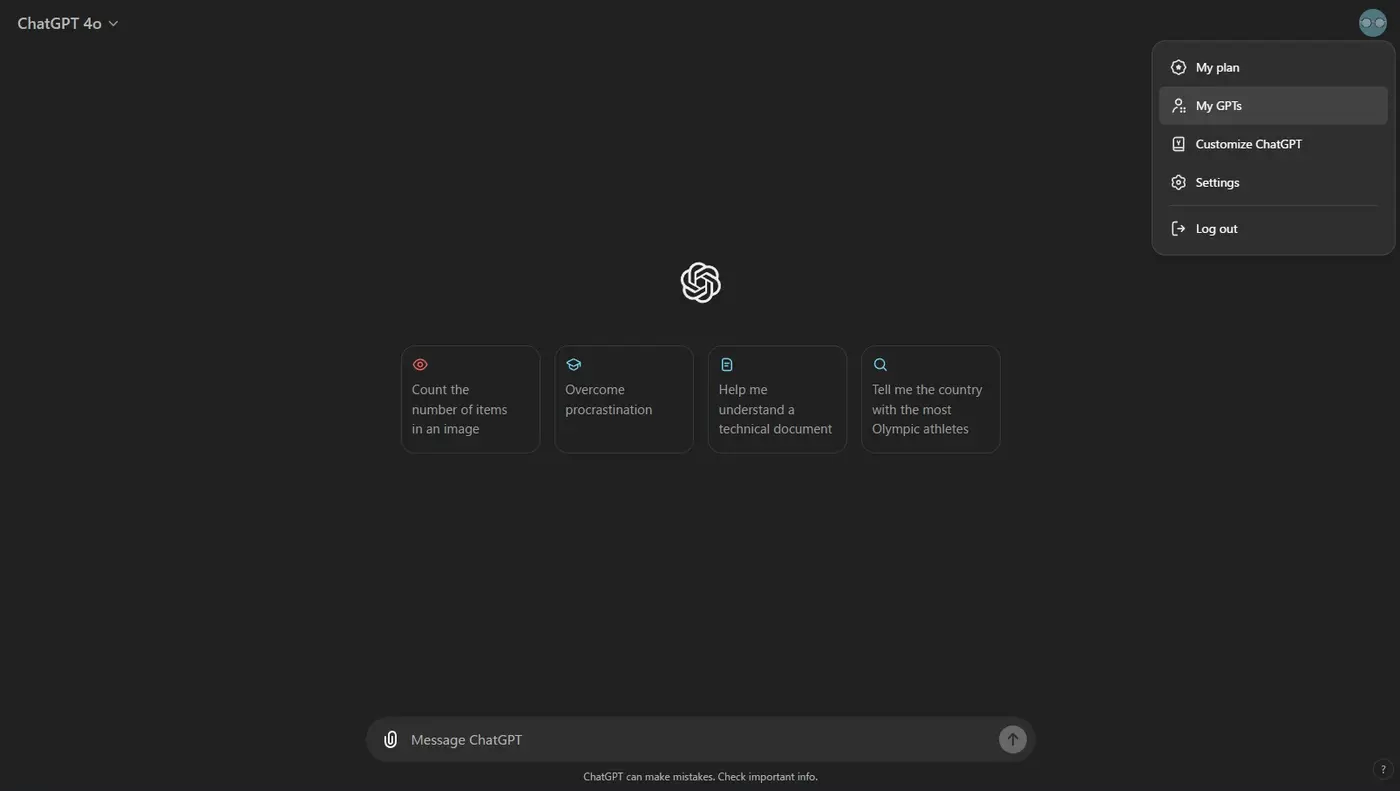
Select My GPTs from the account icon at the top right of the screen.
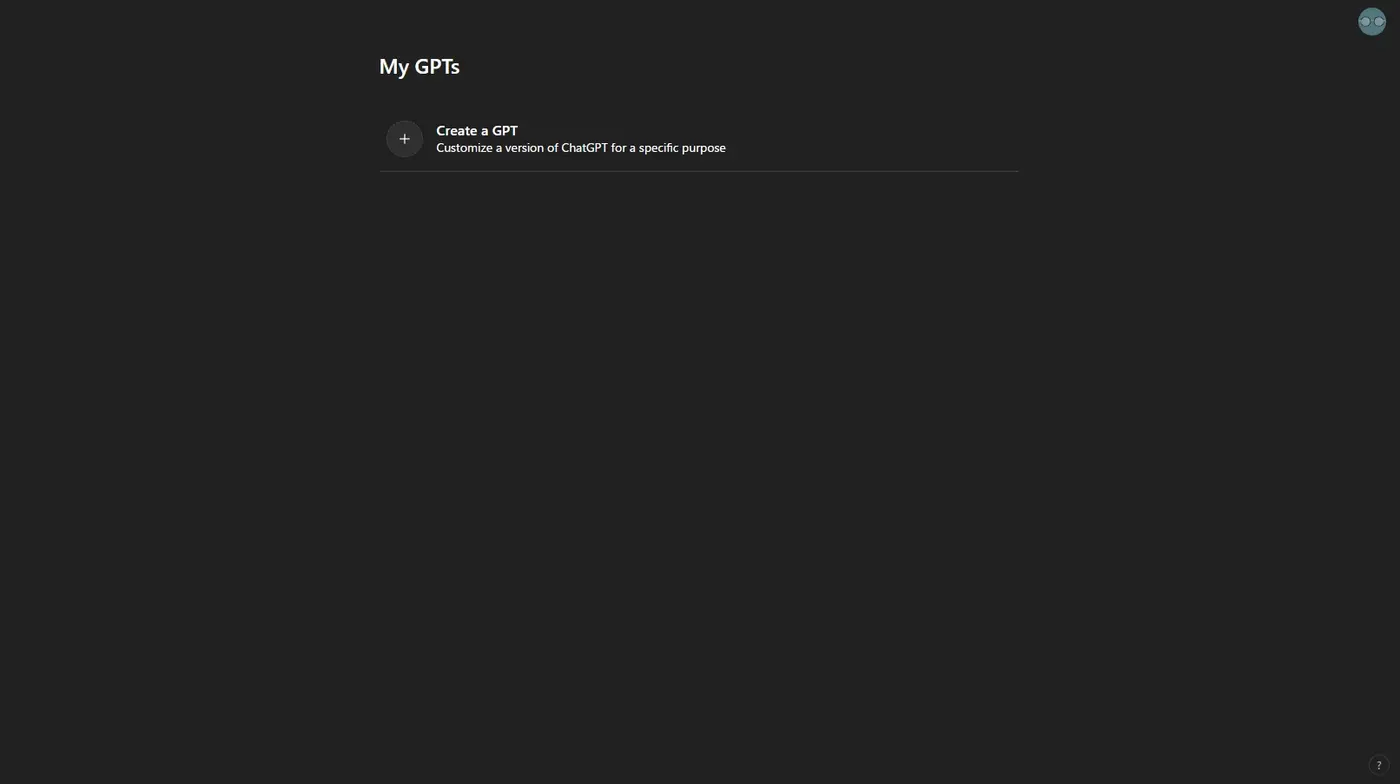
Select Create a GPT.
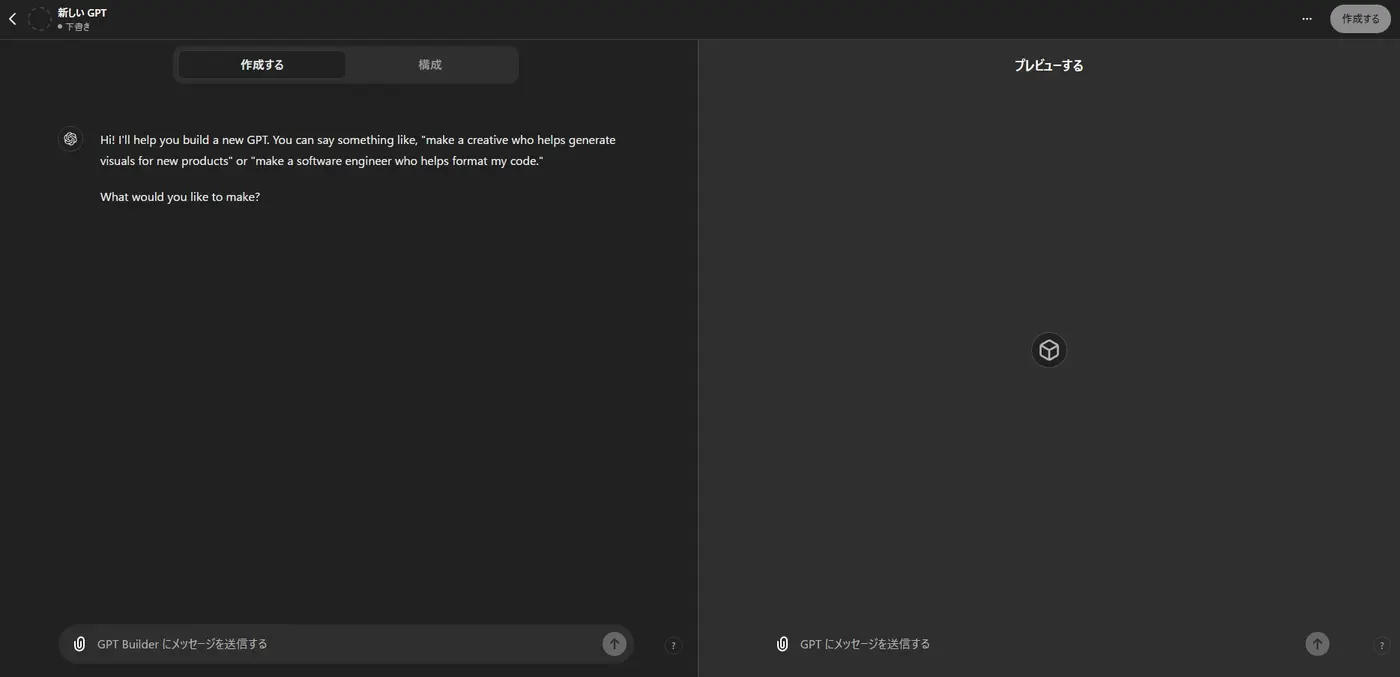
Left: the "Create" tab / "Configure" tab; right: the preview screen
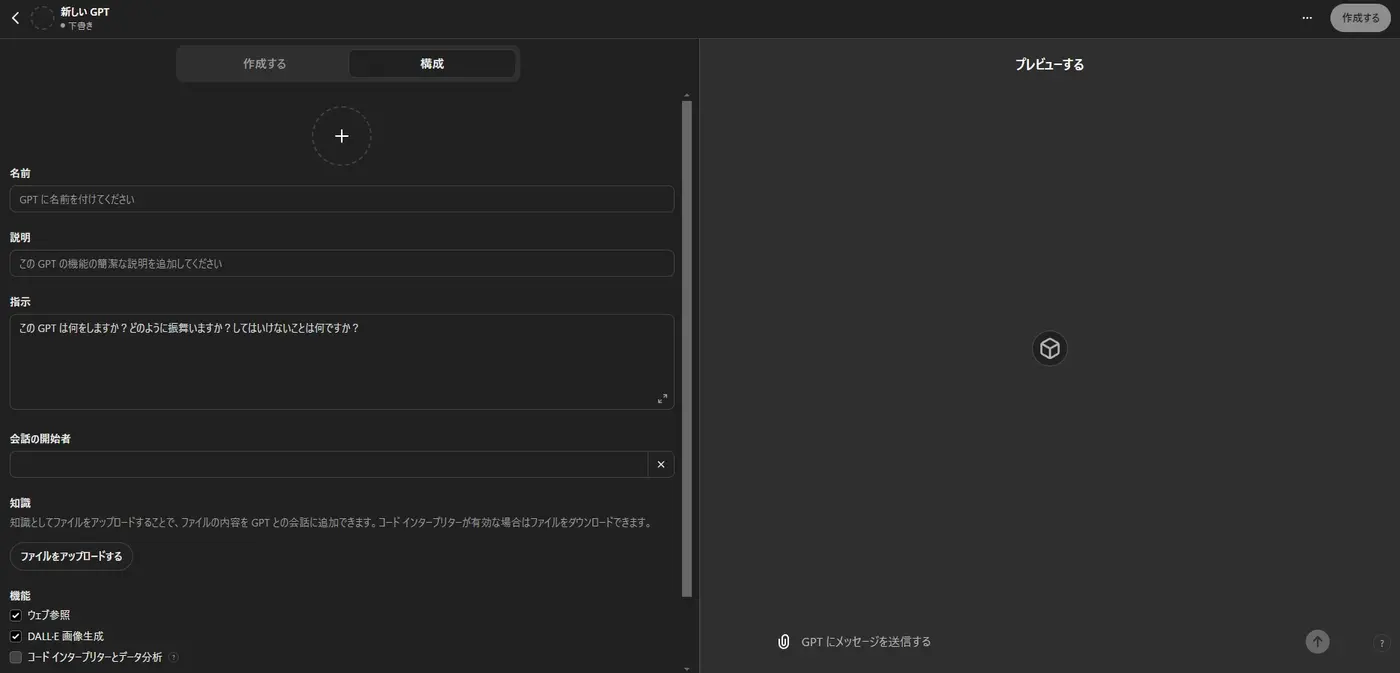
Left: this is what the Configure tab looks like
The GPT creation screen has three parts: the "Create" and "Configure" tabs on the left and the preview screen on the right.
Basically, you customize the GPT by chatting in the "Create" tab. As you describe the GPT you want to build, along with its instructions and knowledge, it neatly summarizes the conversation and fills in the settings in the "Configure" tab automatically.
Once things have taken shape through the conversation, you can also make edits directly in the "Configure" tab.
How to Use My GPTs
It is very easy to use: just send messages in the Create tab, and you can build a dedicated GPT while chatting with it.
As a test, we typed: "I want to converse in Japanese. I want to make a GPT that tells people about our company's services, track record, and company overview." The GPT's first message is in English, so if you prefer Japanese, be sure to tell it so.
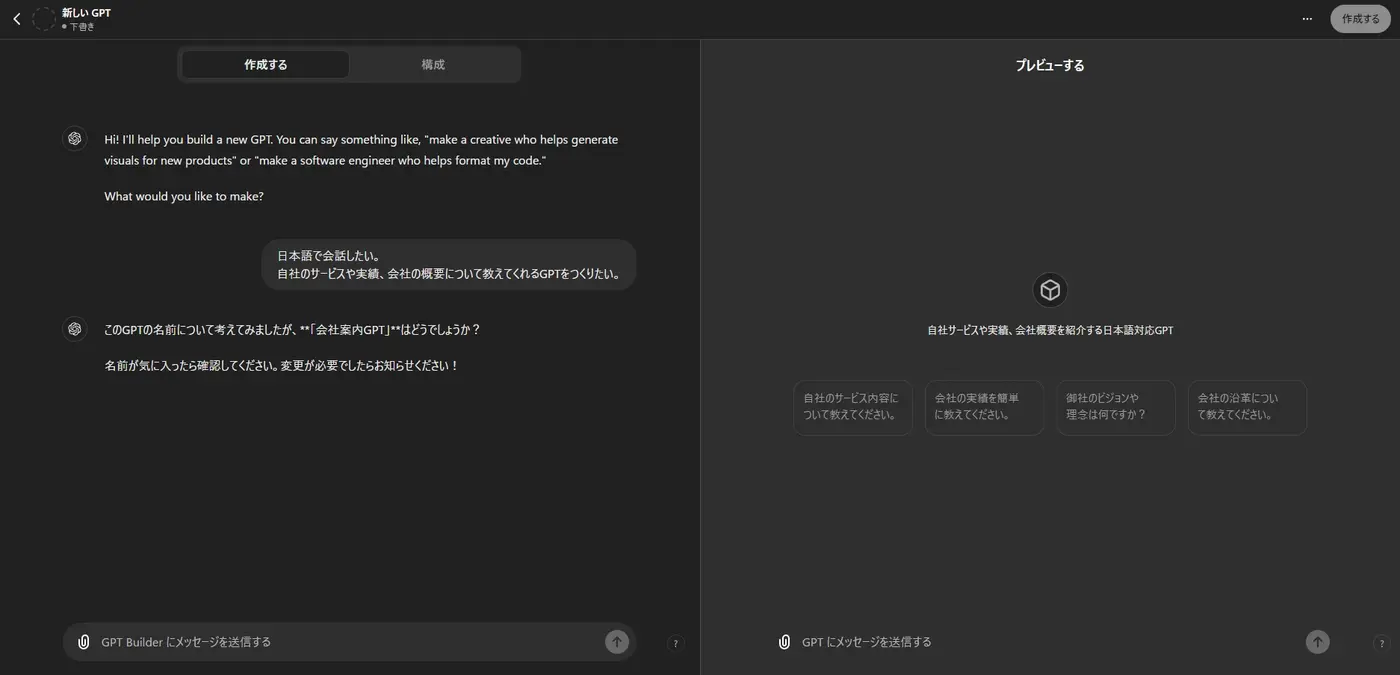
When you send a message from the message field on the left, the GPT automatically sets up the configuration and also reflects it in the preview screen.
Let's also check what the Configure screen looks like.
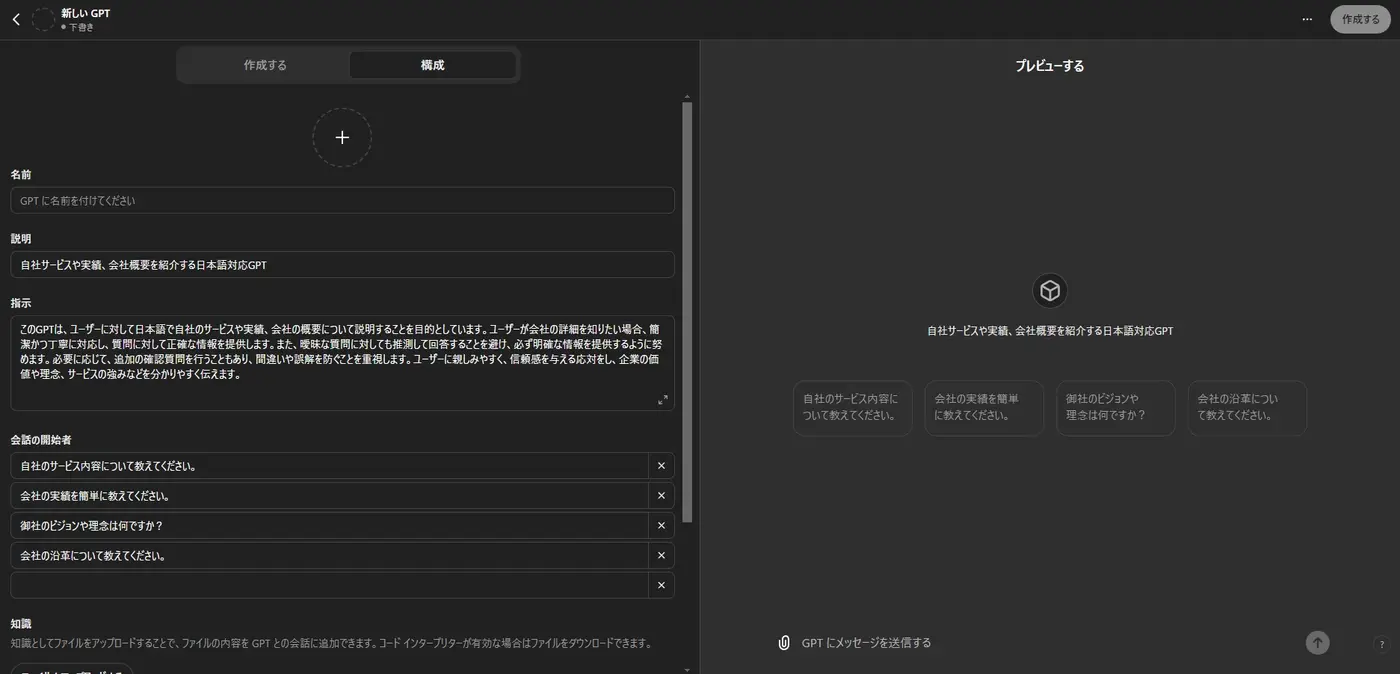
The GPT sets the configuration according to the conversation, and you can check and test the GPT in the preview screen.
It also suggests a name and icon for your GPT during the conversation, so you can set them right there in the chat or set them yourself from the Configure tab.
The rough workflow is to decide on the settings while chatting with the GPT, check in the preview screen whether it gives the responses you expect, and if not, fix it through the conversation or manually in Configure, then check again, refining it step by step.
When you think you have the GPT you wanted, publish it.
You can publish it from the "Create" button at the top right of the screen.
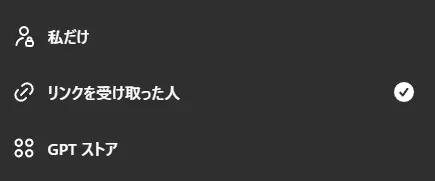
Be careful to choose the correct sharing scope.
There is plenty of room for improvement, but we built a GPT that tells people about WAN.
My GPTs: "About World Area Networks"
What We Learned from Trying It
We experimented a lot along the way, so we would like to share what we learned, what was difficult, and the settings that worked well for us.
There are two settings that seem particularly important, and how you configure them seems to determine whether the responses turn out the way you expect.
• "Instructions": sets how the GPT behaves. You can also specify prohibited topics and the tone of speech.
• "Knowledge": information uploaded in advance that the GPT refers to when responding.
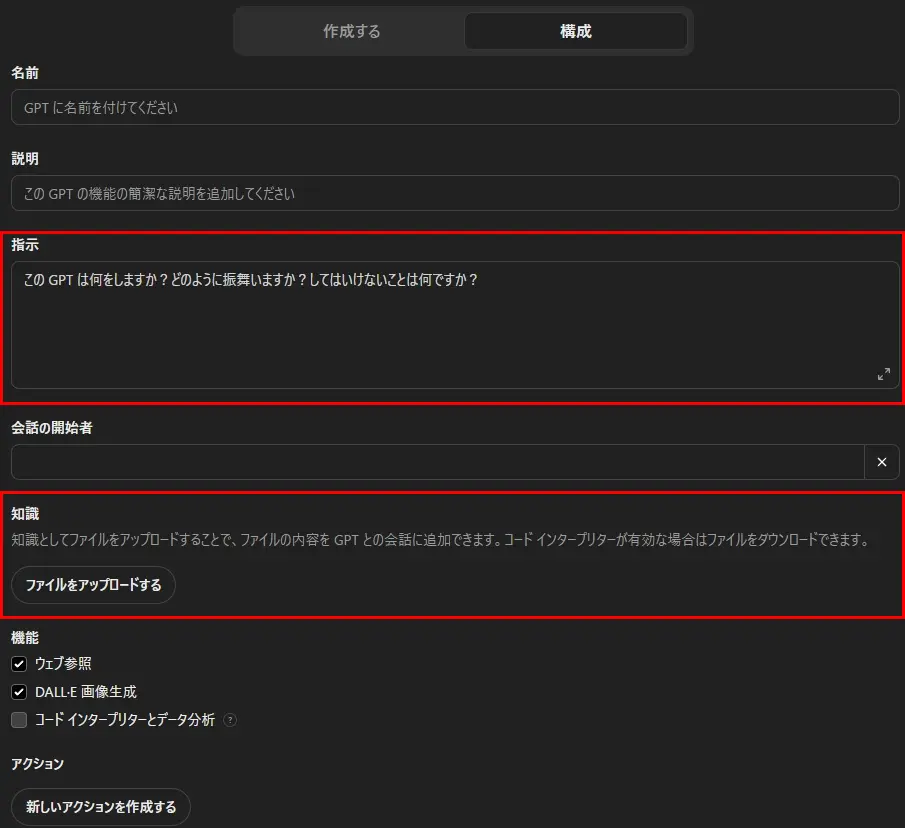
Think About What Kind of GPT You Want Before Building It
Deciding in advance what kind of GPT you want and how you want it to respond makes it easier to build.
Setting the Purpose
We decided what this GPT would be used for, clarifying specific uses such as letting people know what services our company can provide.
Setting the Target Users
We considered who would use it. We adjusted how it responds and how much detail it gives for each target group, such as people who want to learn about our services and track record, people considering commissioning work, and people interested in joining us.
Setting the Goals
Decide what you want to achieve with the GPT, such as helping lead to new production requests or inquiries.
Adding Knowledge for the GPT to Reference
We uploaded our basic company information, articles from our works pages, service descriptions, member information, and more,
and set it up to respond by referring to different knowledge depending on the type of user.
When creating the knowledge data, you also need to take privacy into account, for example by not including information that could identify individuals.
Tips for Getting the Conversations You Expect
As conversations continue, there are quite a few times when you do not get the answers you expected.
Sometimes the responses were better before an edit, or the GPT ignores a rule that should prohibit something and answers about it anyway. In such cases, we change how the instructions are worded, for example:
"When doing ○○, always do △△"
"When asked about ○○, refer to △△ in the knowledge"
"Refrain from answering questions about ○○"
It takes some trial and error, but we think it is necessary to keep adjusting patiently.
The GPT We Built
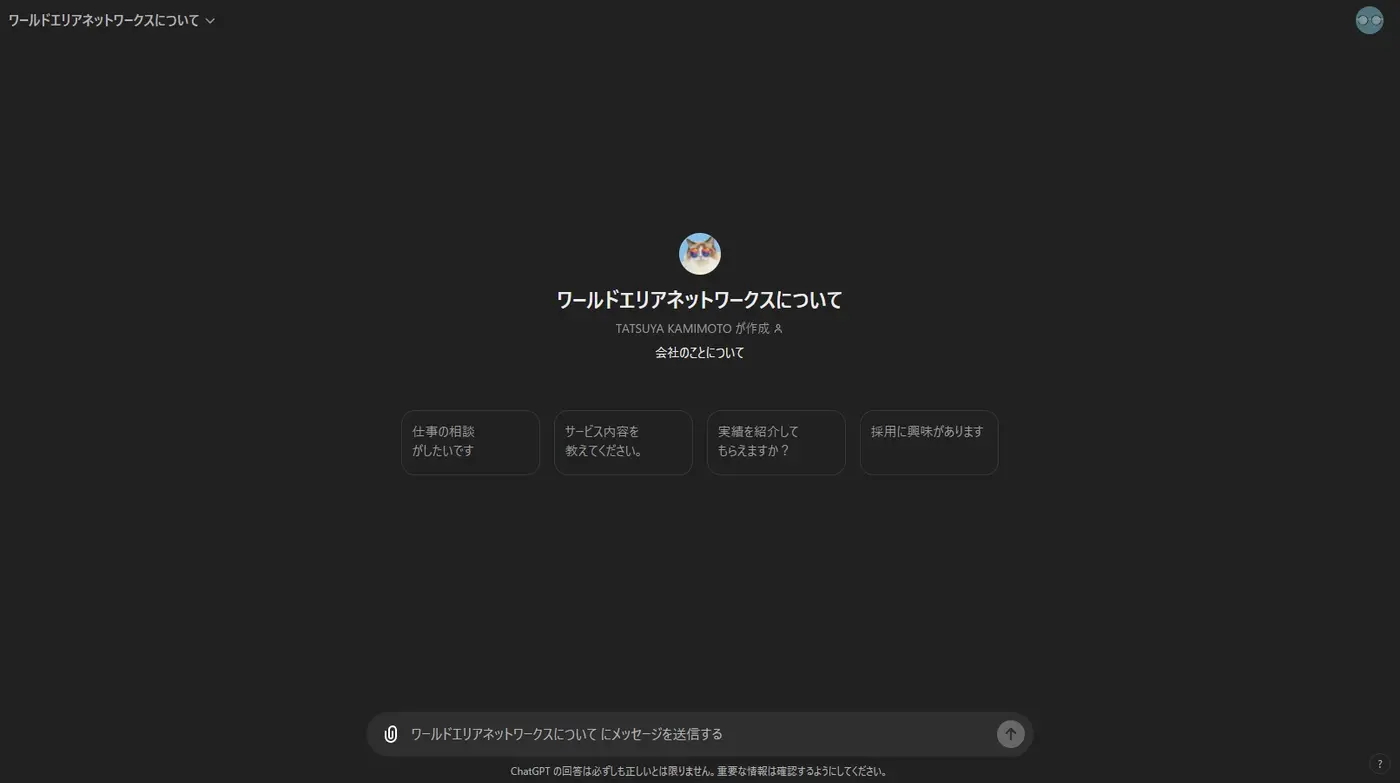
There is plenty of room for improvement, but we built a GPT that tells people about WAN.
My GPTs: "About World Area Networks"
Summary
My GPTs is a versatile tool.
You can create dedicated GPTs for all kinds of purposes, from answering simple everyday questions to streamlining work and even entertainment.