- Home
- Works & Tech
- Handy Tips for the Design Tool "Adobe Illustrator" (Text, Fonts and PDFs)
Tech ArticlesWeb
Handy Tips for the Design Tool "Adobe Illustrator" (Text, Fonts and PDFs)

This article is for Adobe Illustrator users.
We briefly introduce a handy trick for PDF files, as well as text, fonts and font outlines in Illustrator.
Illustrator users, does this ever happen to you?
"Please send us the data in Illustrator format." "Please send us versions both with and without outlines."
Wouldn't it be nice to skip making those requests to clients? Here is a way to gather the data you need in situations like that.
Here is a likely example.
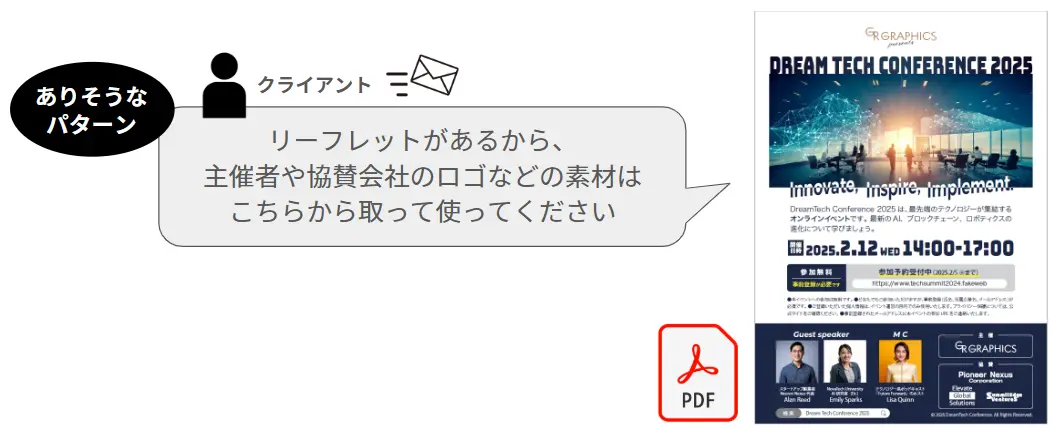
The only data you received for production is a single PDF file…. Does this ever happen to you?
To be honest, I sometimes do this myself. (I have.)
The PDF data was kindly sent to you, but because of differences between Windows and macOS, and in the font data installed on each PC, text can become garbled when the file is opened in Illustrator or as a PDF, turning it into a design the original creator never intended.
You can't just change the fonts on your own, finding similar fonts is a lot of work, and what if you don't have the font at all?
In such cases, here is a simple explanation of how to extract data that preserves the original design.
First, the difference between "still font data" and "already outlined."
If the text is still font data, you can keep the content as it is and change it to another font (typeface).
In Illustrator, a thin light-blue underline is displayed beneath the characters.
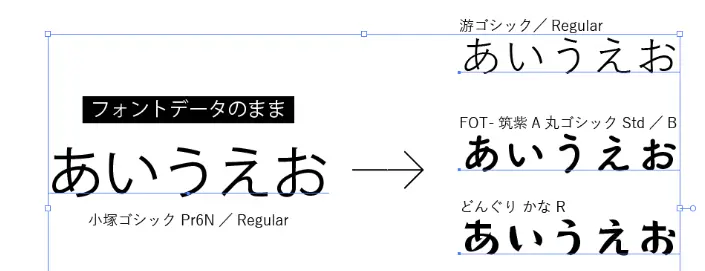
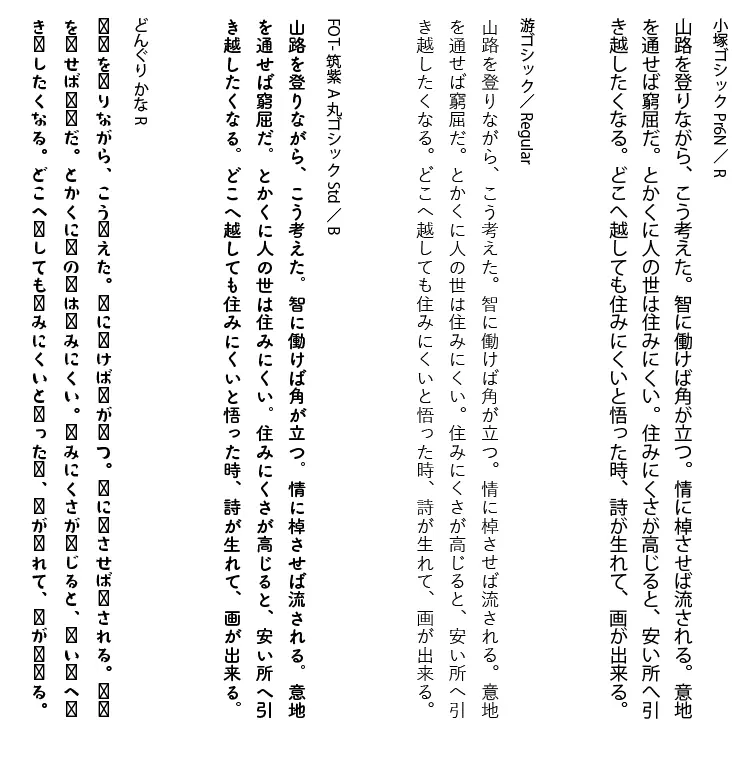
I tried changing the "font" of a slightly longer passage.
If you have text data in a font that has not been outlined, you can change even a long passage like this all at once.
*Donguri Kana is a font containing only hiragana, so the kanji have been replaced with symbols.
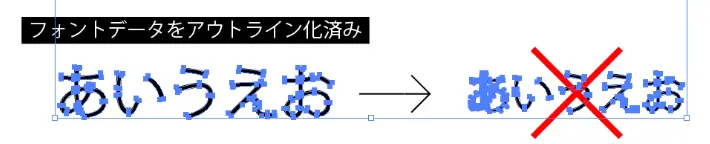
Once text has been outlined, the character information is lost and it can no longer be changed to another font.
In Illustrator, a blue line is displayed around the outer edge of each character's shape.
This is a sample of text in brush lettering. The font data has been converted to outlines.
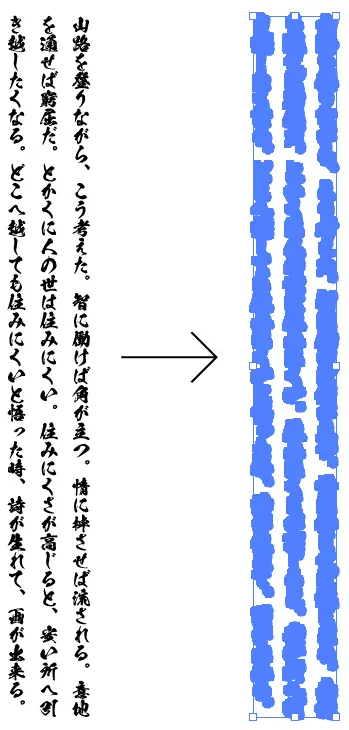
Brush lettering looks great in titles and catchphrases, but I think it can be a little hard to read in longer passages.
If you decide to change the font to make it easier to read, you have to re-enter the text from scratch while looking at the brush-lettered version, and turn it into font data.
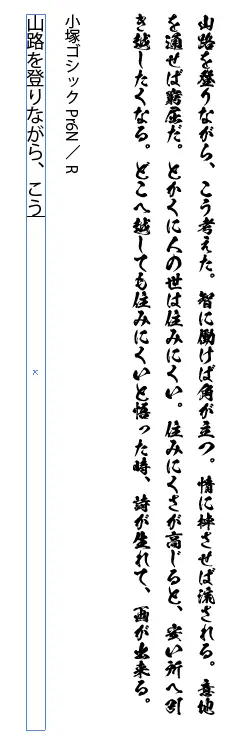
With horizontal text, short passages or simple typefaces, you may be able to convert it into text data using OCR (*), but with vertical text or special fonts like the sample, recognition accuracy drops.
(*A technology that reads characters using a scanner or camera and converts them into text data)
In cases like this, if you have "font data that has not been outlined," in which the text data remains, you can copy and paste it, which makes typos and conversion errors less likely.
Ideally, sending and receiving both versions of the data, one with the text still as text data and one outlined, helps prevent mistakes, but you can't always get the data directly from its creator.
Using a sample PDF, we'll explain what to do when you receive data that has not been outlined.
Let's look at the sample PDF.
We created a leaflet for a fictional online event as a sample.

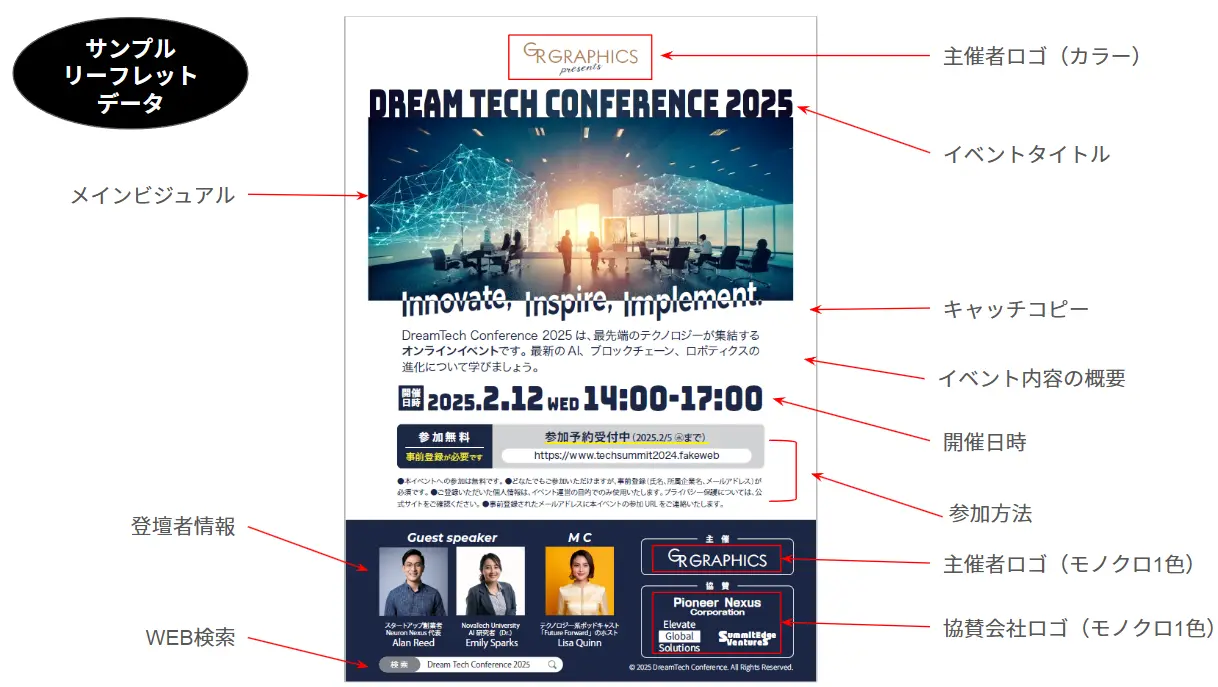
The fonts, including the company logo and title, have basically been left un-outlined, and the file has been saved in PDF format. Let's open this file, which was made on a Windows PC, on a Mac with a different font environment.
Let's open the sample PDF file in Illustrator.

Open Illustrator in whatever way you like.
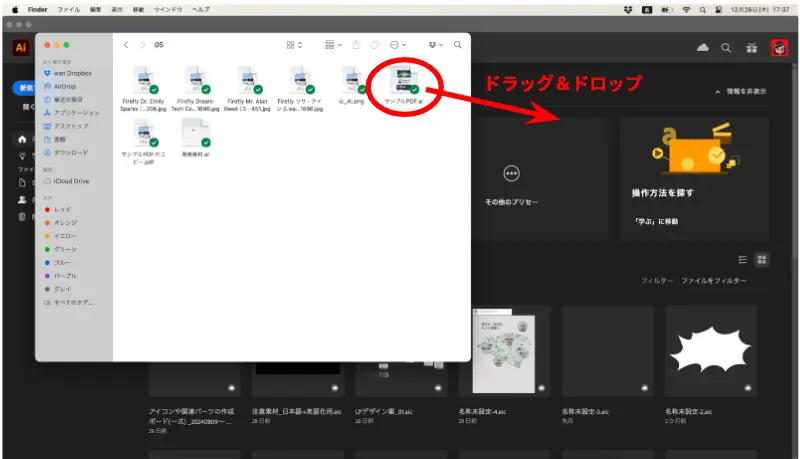
Drag and drop the [サンプルPDF.pdf] (sample PDF) from earlier into Illustrator to open the PDF file.
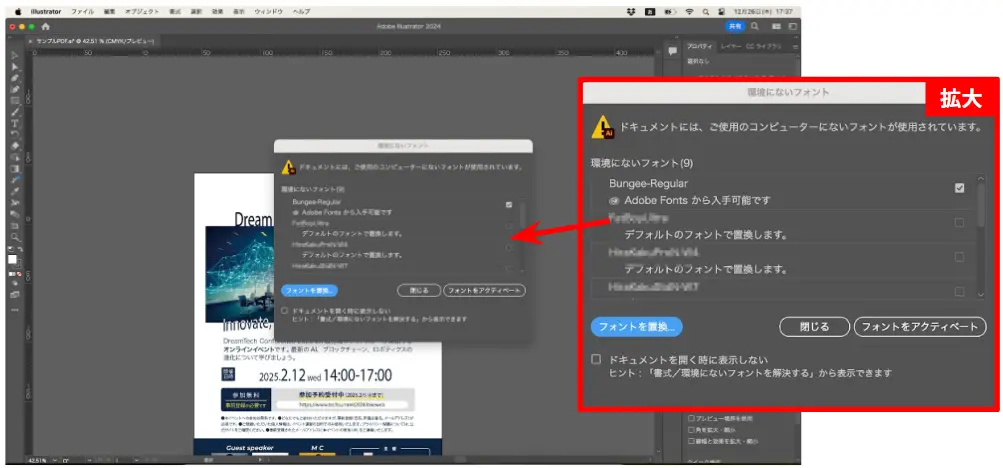
- The sample PDF opened in Illustrator, but the [Missing Fonts] dialog appeared.
- This appears when the text used in the file has not been outlined and the fonts used for that text are not installed on your own PC.
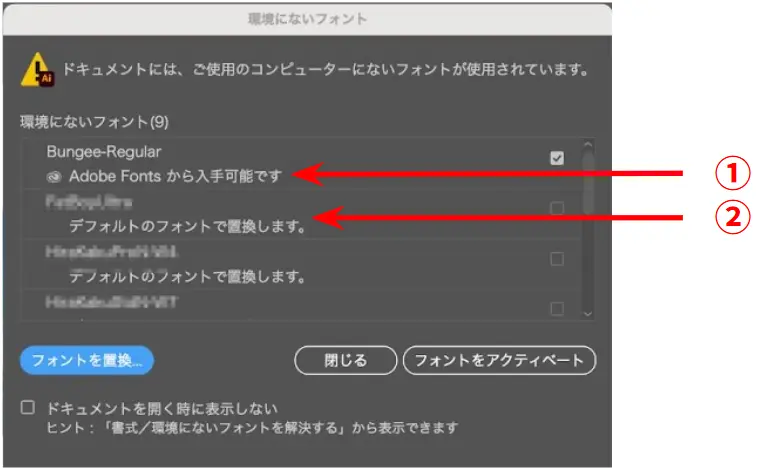
(1) If the font name has "Available from Adobe Fonts" beneath it, you can activate the
font from Adobe Fonts and the text will display in the correct font.
(2) If the font name has "Will be replaced with the default font" beneath it, the font
is not available in Adobe Fonts. (Font data owned by the PDF's creator is being used.)
The text will be displayed with the default font (Kozuka Gothic, etc.) substituted.
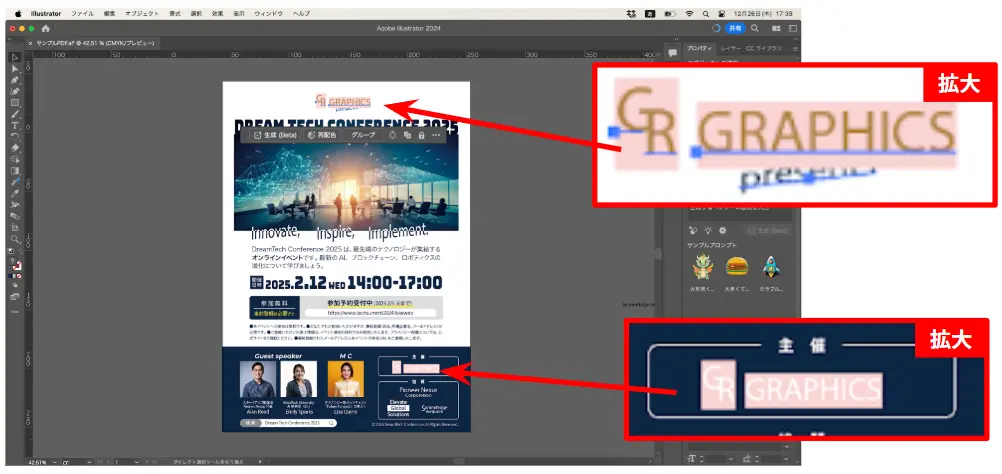
After closing the dialog, the PDF opened, but the text data that uses fonts not installed on
your PC was displayed with standard fonts substituted.
We want to use the organizer's logo as an asset, so let's try a way to display it in its original "shape."
Let's create data with the text converted to outlines.
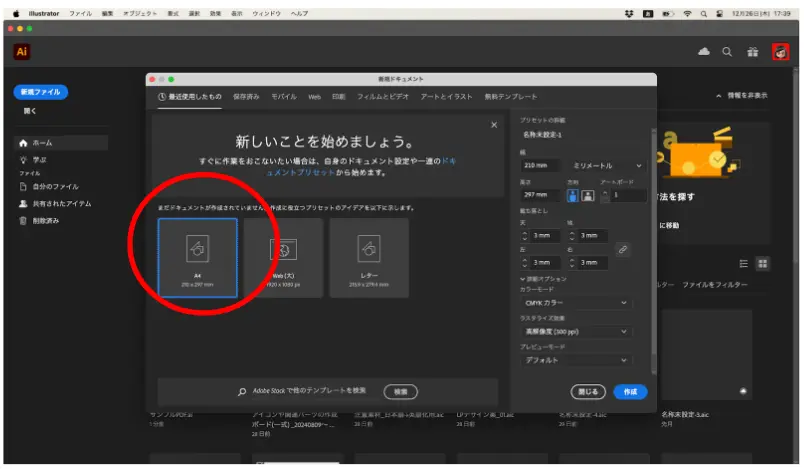
Create a [New Document].
The sample leaflet is A4 size, so create a [New Document] with an A4 artboard.
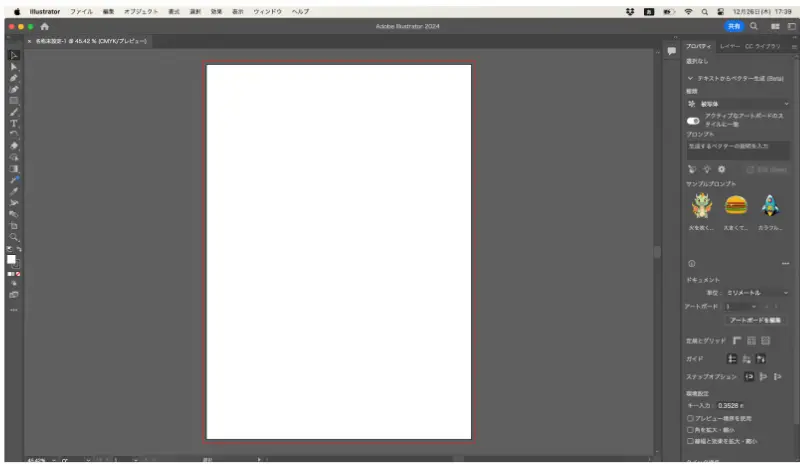
A [New Document] with an A4 artboard has been created.
Select [File] → [Place].
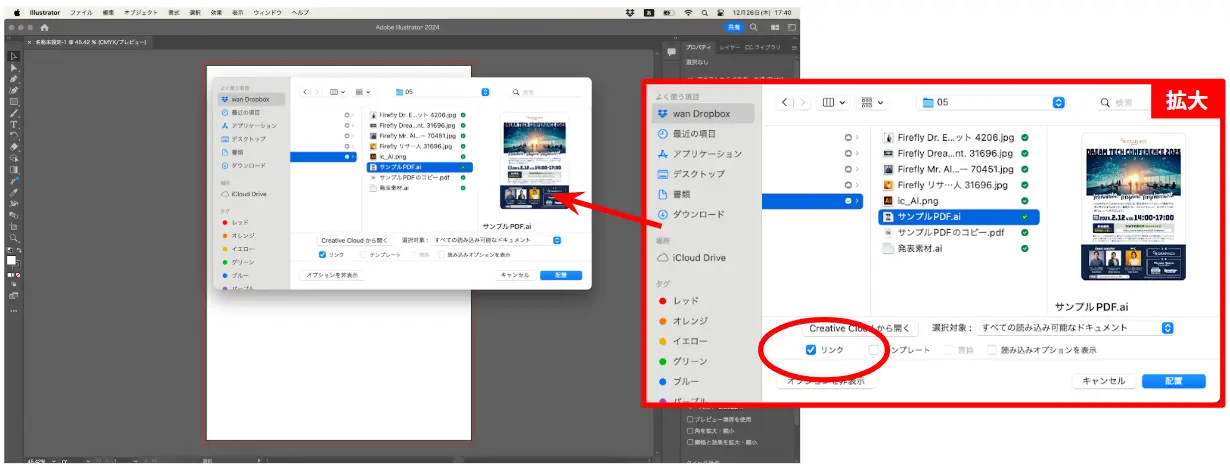
Select the file to place, [サンプルPDF.pdf], and click the [Place] button.
Since we will use the PDF file as a linked image, be sure to check "Link".
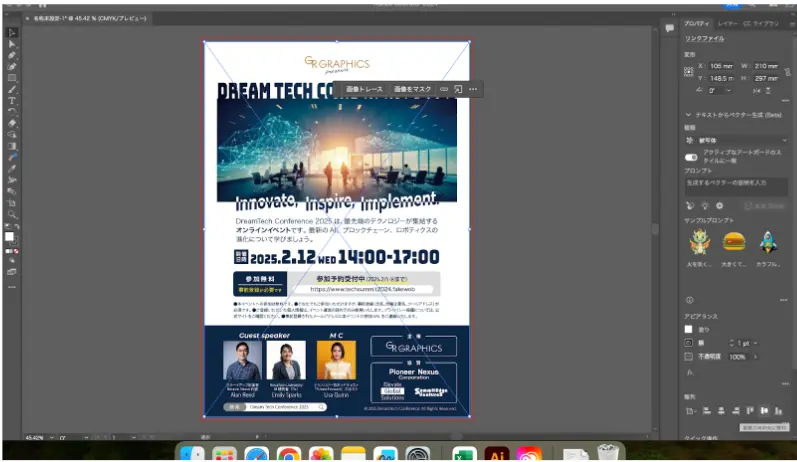
[サンプルPDF.pdf] has been placed on the artboard.
Placed data with lines like an × across it is marked as a linked image.
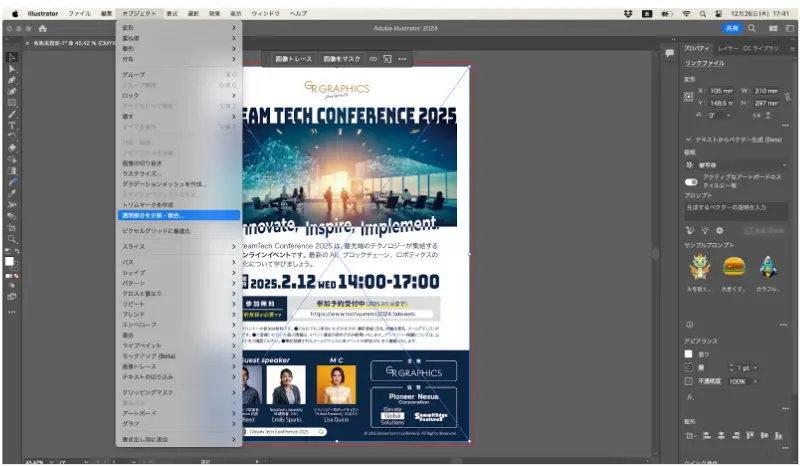
With the placed linked image still selected, select [Object] → [Flatten Transparency…].
Check [Convert All Text to Outlines] and click the [OK] button.
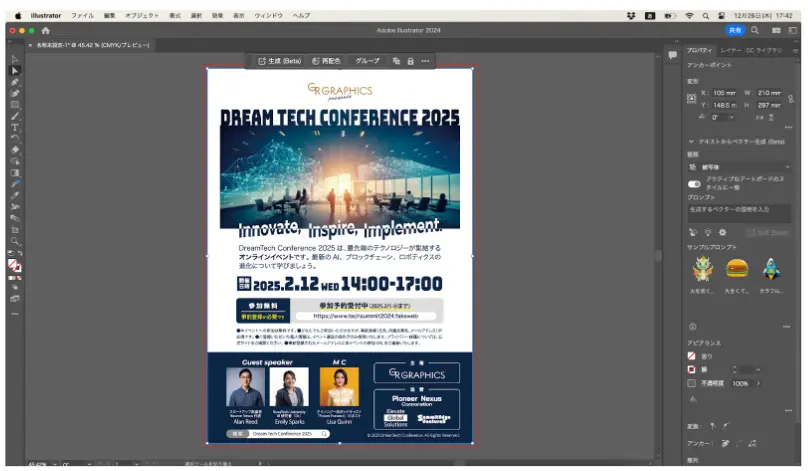
The data that was a linked image has been placed on the artboard.
It is currently masked (clipped) to the size of the outer frame, so next we will separate the parts to make them easier to use.
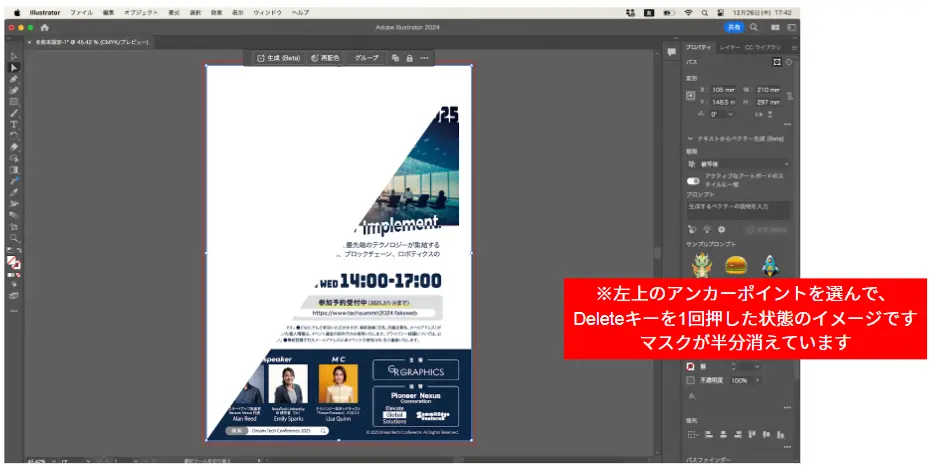

Switch to the Direct Selection tool, click the outer frame to select it, and press [Delete] on the keyboard twice to remove the mask.
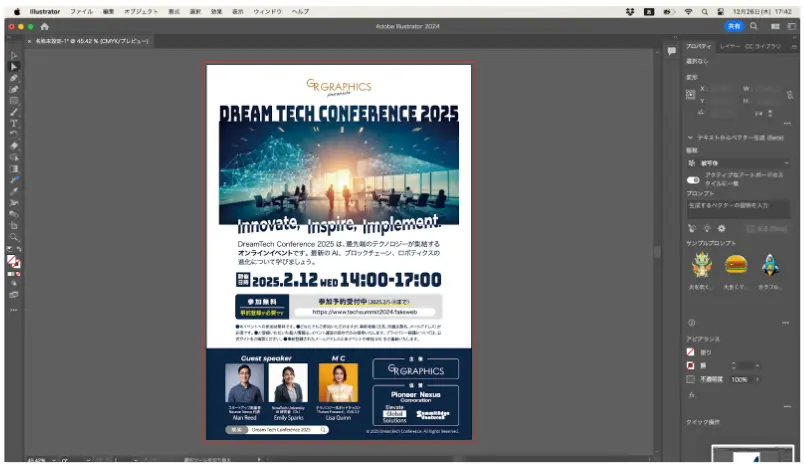
The mask that covered everything is gone.
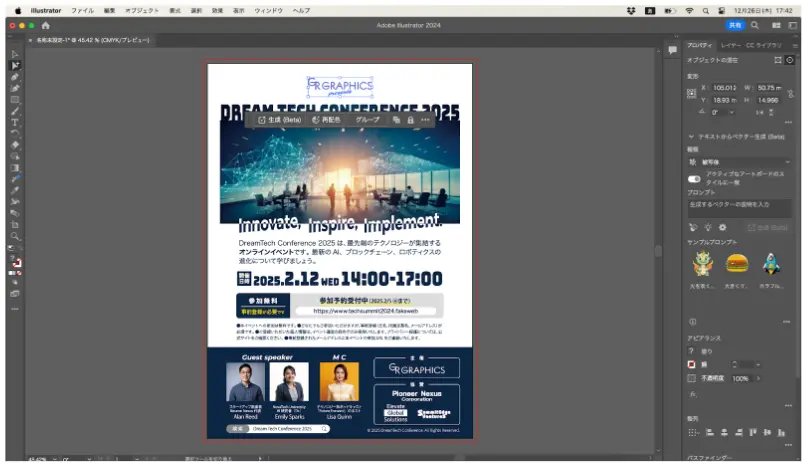

If you select the organizer's logo with the Group Selection tool, you can see that the text has been converted to outlines. Now you can use the organizer's logo in its correct shape.
Finally.
We used a leaflet as our example, but beyond printed materials, there may come a time when this comes in handy, such as "Please composite this logo onto the name plate of a building (made in 3DCG)" or "Please make an event introduction video based on the contents of this PDF." Keep it in mind, and it might come in useful someday! Be sure to remember it.
Going forward, whenever the timing is right, I hope to keep sharing little tricks, such as things I've used and thought "Oh, this might be handy," or "Here's something you can do." See you next time!