- Home
- Works & Tech
- Thinking about web production: we looked into the differences between Illustrator (paid) and Inkscape (free)
Tech ArticlesWeb
Thinking about web production: we looked into the differences between Illustrator (paid) and Inkscape (free)

Introduction
In our everyday production work, we mainly use Adobe Illustrator.
Illustrator for print design. Illustrator for web design. Even for video editing, we create assets in Illustrator and edit them in Premiere or After Effects. We launch and use Illustrator every day.
One day, while designing a web page in Figma and copying and pasting assets made in Illustrator, I thought, "Couldn't I do this design using only services that are provided for free?"
Can "Inkscape," a well-known alternative, fill the role of Illustrator? From the perspective of an Illustrator user, I would like to compare the differences between Illustrator and Inkscape, mainly for use in web production.
▲ Icons
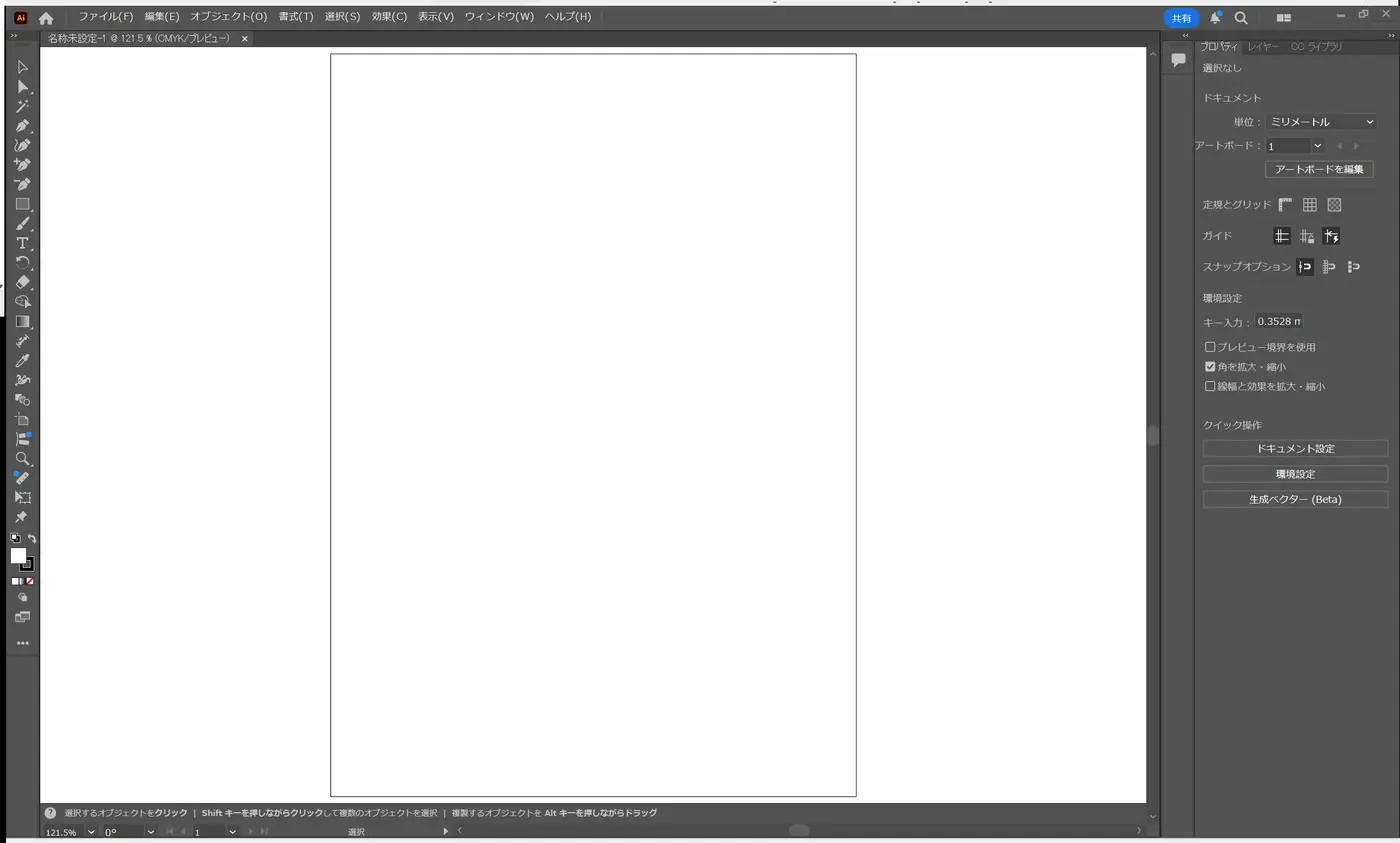
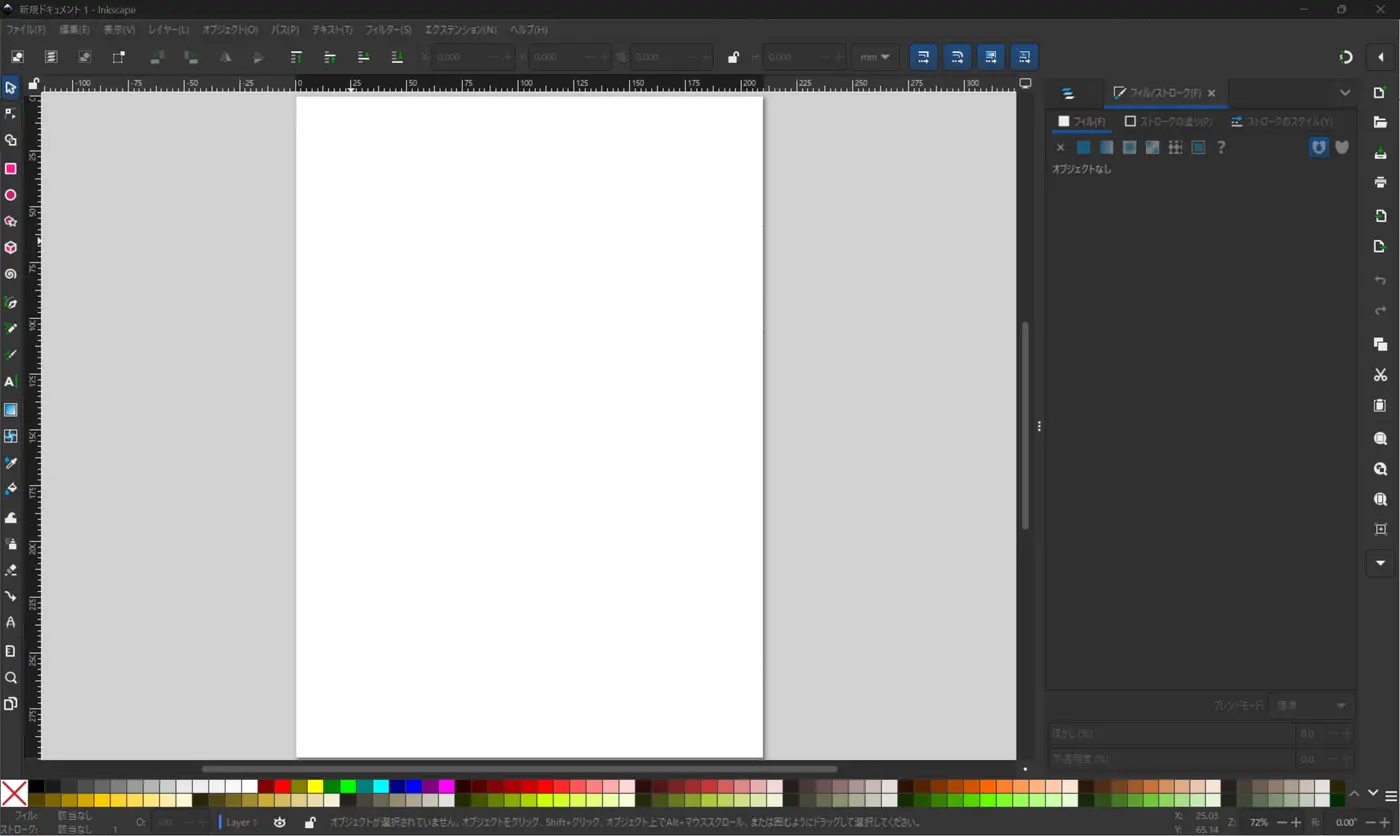
▲ Start screens (Illustrator / Inkscape)
Basic information on Adobe Illustrator and Inkscape
| Illustrator | Inkscape | |
|---|---|---|
| Price | Paid (subscription) | |
| - Single app plan: ¥3,280/month (tax included) | ||
| - CC Complete plan: ¥7,780/month (tax included) | Free (open source) | |
| Supported OS | Windows / macOS / iPad | Windows / macOS / Linux |
| Main features | Industry-standard design tool | |
| Wide range of fonts and brushes | ||
| Advanced customization | Full-fledged vector editing for free | |
| Simple, lightweight UI | ||
| Strong with SVG data | ||
| Compatibility | Inkscape → Illustrator | |
| SVG: ◎ (recommended) | ||
| AI: × (cannot save in AI format) | ||
| PDF: 〇 (can be opened, with limitations) | ||
| EPS: △ (can be opened, with limitations) | Illustrator → Inkscape | |
| SVG: ◎ (recommended) | ||
| AI: △ (possible with older versions) | ||
| PDF: 〇 (possible to some extent) | ||
| EPS: △ (partially compatible) | ||
| Other | Software with advanced design features, geared to commercial printing | Free, open-source vector editing software |
(As of April 2, 2025)
How does compatibility actually work in practice? To find out, I saved a sample file I had made in Illustrator in SVG format and opened it in Inkscape.
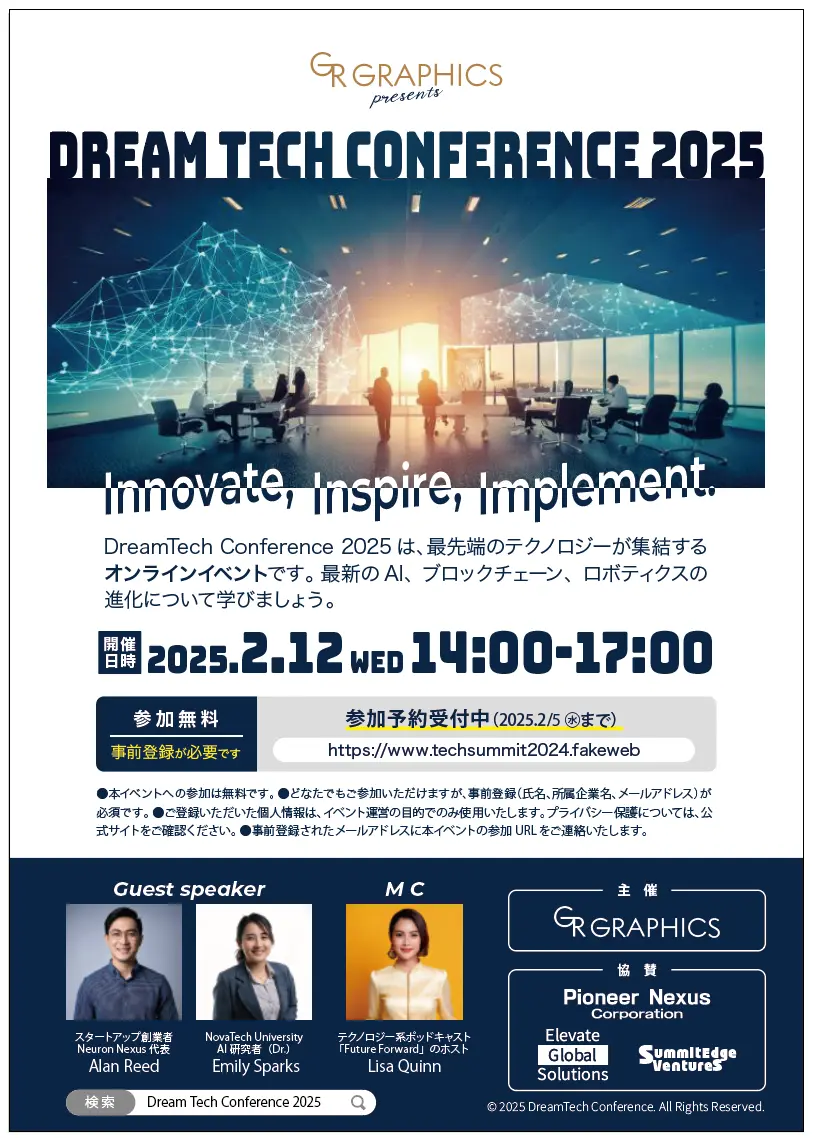
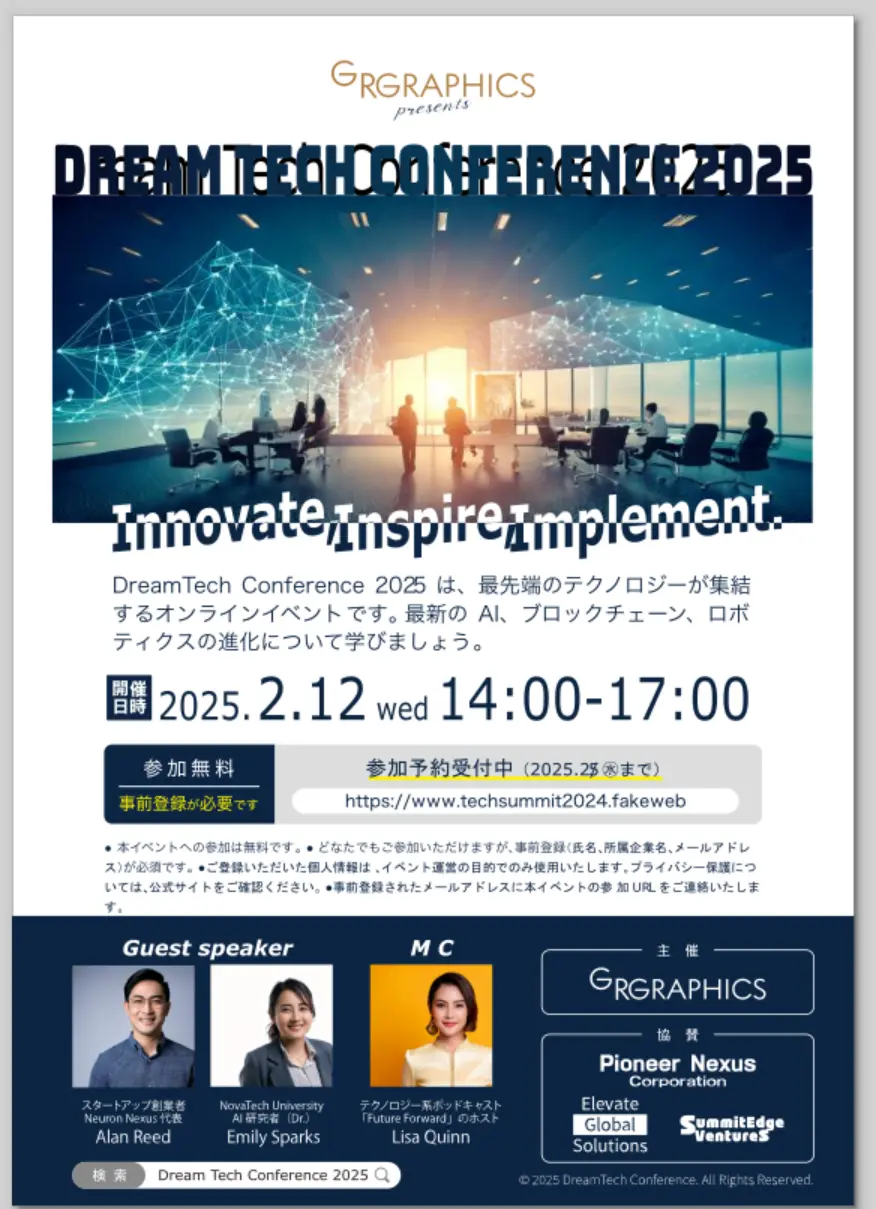
(Left: original data; right: data opened in Inkscape)
The text is garbled, so it seems fine as long as the fonts are converted to outlines.
Incidentally, I also tried changing the AI version and saving as PDF, but in my environment I could not open the files... Perhaps simple data would work?
Strengths of each
◆ Strengths of Illustrator (for professionals)
● Standard tool in the design industry
→ Used across a wide range of fields, including print, web, video and UI design.
● Rich features, brushes and fonts
→ Illustrator comes with Adobe Fonts and a variety of brushes and effects, enabling more refined designs.
● Excellent at complex path editing
→ The "Pathfinder" and "Shape Builder Tool" make advanced shape editing smooth.
● Integration with Photoshop and After Effects
→ Adobe CC integration is seamless, so Illustrator designs can be carried straight over to other software.
◆ Strengths of Inkscape (free to use!)
● Completely free
→ Easy to adopt, even for individuals and beginners.
● Lightweight and fast
→ The simple UI keeps it light, and it runs comfortably even on older PCs.
● Strong at SVG editing
→ Ideal for creating icons and illustrations for the web.
● **Can open Illustrator AI files (*with limitations)**
→ It is compatible, but layers and effects may not be reproduced correctly.
Feature comparison: Illustrator vs. Inkscape
| Feature | Illustrator | Inkscape |
|---|---|---|
| Path editing | ◎ Advanced shape tools and Pathfinder | ◯ Simple path editing features |
| Layer management | ◎ Complete freedom with effects and grouping | △ Somewhat awkward to use |
| Text editing | ◎ Wide variety of fonts | ◯ Basic editing possible |
| SVG editing | △ Supports SVG, but optimization is needed | ◎ Optimized for SVG |
| Effects and filters | ◎ Wide range of brushes and filters | △ Limited filters only |
| 3D features | ◎ Well-equipped 3D tools | × None |
| Print design (CMYK) | ◎ CMYK support for high-quality printing | △ RGB only (not suited to print) |
(As of April 2, 2025)
I have used Inkscape a few times, but this was the first time I learned that it does not support CMYK.
*It seems CMYK data can be created by using other free software.
Difference in file formats: AI for Illustrator, SVG for Inkscape
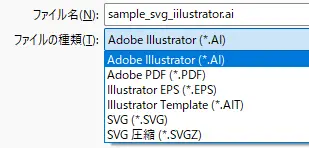
Illustrator offers various save formats, but files are basically saved in AI format.
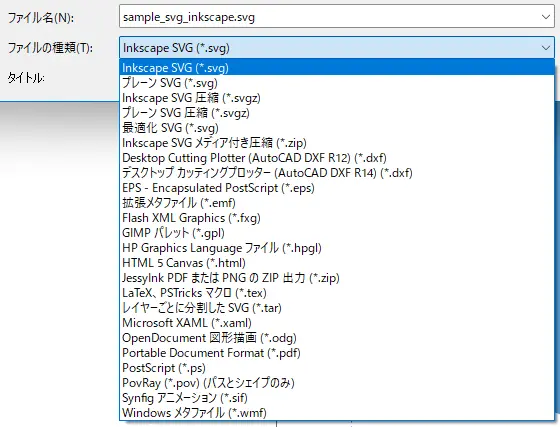
Inkscape also seems to offer quite a few formats, but its basic format is SVG.
What is SVG?
SVG stands for Scalable Vector Graphics, a vector image file format. It represents images mathematically and is built from lines and shapes (straight lines, curves, circles, rectangles, etc.).
Because it does not lose quality when scaled up or down, is lightweight and helps web pages load quickly, it is used for simple graphics such as icons and logos. For icons and logos in particular, using SVG is becoming the norm.
Illustrator and Inkscape handle SVG differently, as follows.
| Software | How SVG is handled |
|---|---|
| Illustrator | SVG is an "external format" (AI files are the native format) |
| Inkscape | SVG is the native format (optimized editing possible) |
In Illustrator, data is saved in AI, Illustrator's own format, and SVG is written out through "Export."
In Inkscape, SVG is the standard format (save format).
As a result, when you export or save an image in SVG format, the differences are as follows.
✔ SVG from Illustrator may contain extra metadata and Adobe-specific tags.
✔ Inkscape lets you edit and save SVG directly, making it easier to keep the code simple.
What Illustrator and Inkscape are each suited for
| Purpose | Illustrator is suited when | Inkscape is suited when |
|---|---|---|
| Logo design | You need advanced path editing or font manipulation | You want to make a simple logo |
| Posters and flyers | CMYK support for print | OK for simple web banners |
| Icon creation | You need fine adjustments for web or apps | You want to make SVG icons easily |
| Web design | You want integration with Adobe XD or Photoshop | You are making simple buttons or UI elements |
| Illustration | Rich vector brushes and gradients | Can handle simple illustrations |
Naturally, since one is paid and the other free, there are differences in what they can do. But for creating simple things such as web and UI designs, Inkscape seems perfectly capable.
So which one?
When we recommend 〈 Illustrator 〉
✔ Professional designers (print, advertising, web production, etc.)
✔ You want to do advanced design work
✔ You want to integrate with other Adobe software, etc.
However... since there is a monthly fee, it may not suit people concerned about cost relative to their production volume.
When we recommend 〈 Inkscape 〉
**✔ You want to try vector editing for free
✔ You want to make simple icons and logos (web production, etc.)
✔ Your PC has low specs and you want lightweight software**, etc.
However... it does not support CMYK, so it is not suited to creating print data, and Illustrator files (.ai) may lose their layer structure when imported.
For example, if a client gives you brochure data and you open it in Inkscape, the design may be broken, so you would probably need to get a PDF as a reference and check the original design.
If you are thinking "I'm new to vector editing and want to get used to it" or "I want to try it for free first," we recommend starting with Inkscape and moving to Illustrator as needed.
Does the size change when you open data saved in Inkscape in Illustrator?
Once, we were given finished data made in Inkscape, and when we opened it in Illustrator, the size had changed. We asked for the original size and resized it in Illustrator, which settled things for the time being, but at the time the cause remained unknown.
While putting this blog post together, I remembered that case and looked into the cause.
| Software | Default DPI |
| Illustrator | 72dpi |
| Inkscape | 96dpi |
Illustrator and Inkscape have different default DPI settings, and SVG files sometimes do not contain DPI information. It seems that when Inkscape data saved at 96dpi is opened in Illustrator, it can be enlarged by about 1.33 times (96 ÷ 72).
Reportedly, when handing data from Inkscape to Illustrator, exporting in PDF or DXF format rather than SVG helps prevent size changes.
I'm noting this here as a reminder to myself.
In closing
When choosing a design tool, it is very important to pick the right software for the purpose.
Inkscape, Illustrator, Figma and other tools each have their own strengths and characteristics, and choosing them to match the goals of a project lets you produce high-quality results more efficiently.
WAN handles a wide range of design work, including web design and UI/UX design. We propose and create designs tailored to our clients' needs. Please feel free to contact us for a consultation.