- Home
- Works & Tech
- An Easy-to-Understand Guide to Using Components in the Design Tool Figma
Tech ArticlesWeb
An Easy-to-Understand Guide to Using Components in the Design Tool Figma
Hello, everyone. I'm Kamimon from WAN.
In this article, I'll give an easy-to-understand introduction to the component feature of the design tool "Figma."
What is a component?
"Component" is an English word meaning "part" or "element," and it is a term you often hear in many fields. A component refers to a small "part" or "element" needed to make up a whole, and it is used in combination with other things.
Benefits of using components
Components are not a feature you must know in order to design, but using them lets you create and manage designs efficiently. Specifically, they offer the following benefits.
Group elements you use repeatedly
For example, when you use the same design element many times, such as buttons, icons, or headers, you can save it as a single "component."
Update easily even as items with the same design increase
Once you have created a component, whenever a design change is needed, simply updating that component automatically updates all related parts. This saves time and prevents mistakes.
Maintain design consistency
It becomes easy to maintain the same style and design across the entire project. You can ensure that all buttons and icons have a unified design.
How to create a component
First, create the design you want to turn into a component. This time, I'll use auto layout on some text to create a button and turn it into a component. Alternatively, you can create one by placing text on top of a rectangle. Creating a component is easy. Select everything in the design you want to turn into a component, and click the ❖ icon at the top of the screen.
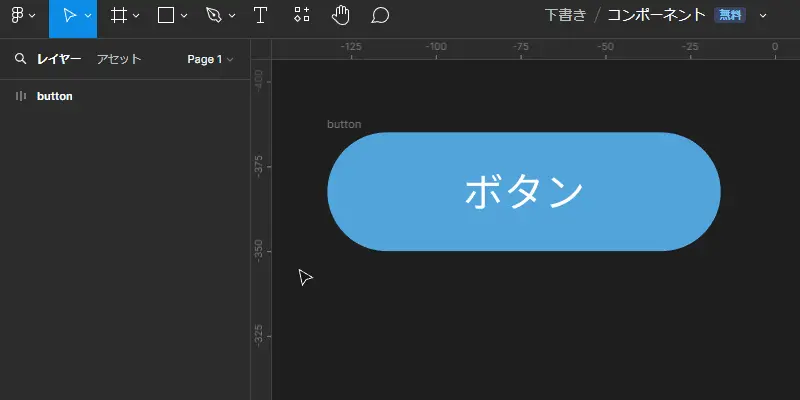
You'll see that the selected layer has changed into a layer with a purple ❖ icon. You have now created one ❖ component for the button.
Preparing to use components
Copy the ❖ component you just created on the canvas. You might expect the ❖ component to be copied, but instead a button with a ◇ icon is duplicated. Getting a button with a ◇ icon may confuse you. It confused me at first, too. This layer with the ◇ icon is called an "instance."
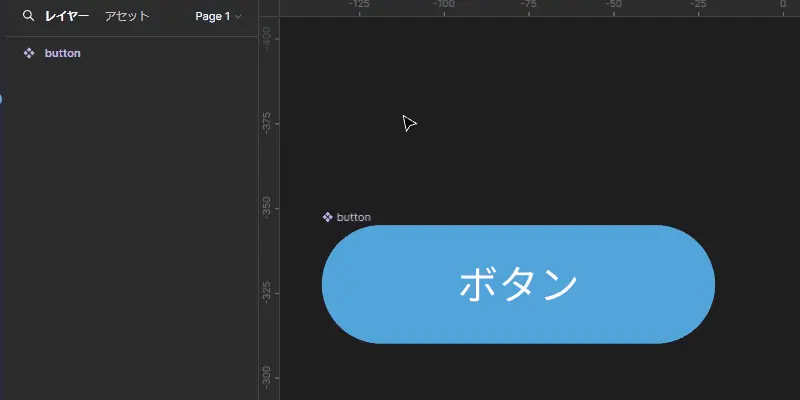
Copy the ❖ component to create a ◇ instance
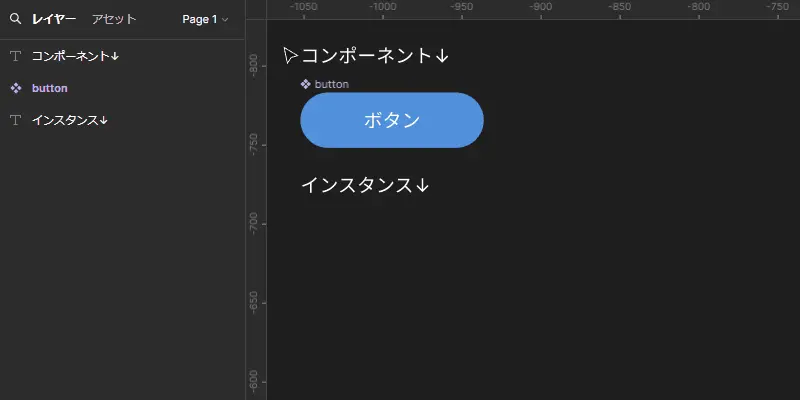
Components are registered in Assets, so you can also copy them from the panel
Some of you may be thinking, "An instance? What's that? Can you eat it?" So let me explain components and instances using cookies as an example.
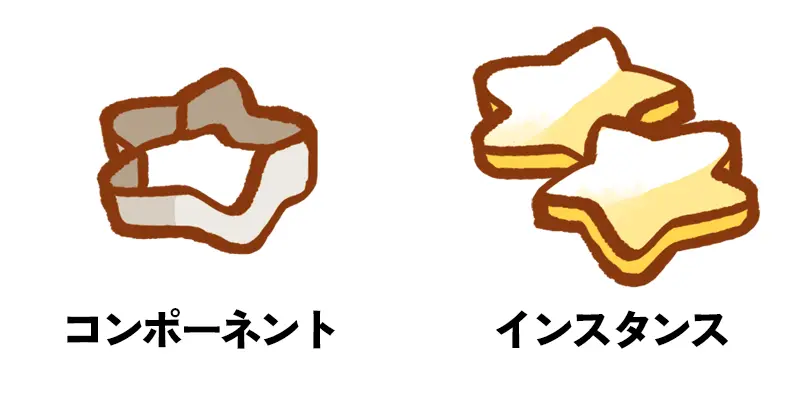
The cookie cutter is the component, and the cookies are the instances. They're sure to be delicious! Instances are mass-produced based on the component. You're now ready to use components.
To use a ❖ component, you need ◇ instances.
How to use components
Let me explain the relationship between ❖ components and ◇ instances in Figma.
When you make a change to a ❖ component, the change is immediately reflected in all ◇ instances placed in the design. If you change the shape of the cookie cutter, the shape of the cookies it makes changes too. This makes changing and fixing designs easy, since you only need to change the component, while also maintaining design consistency.
This time, let's try changing only the color of the button.
Editing a component
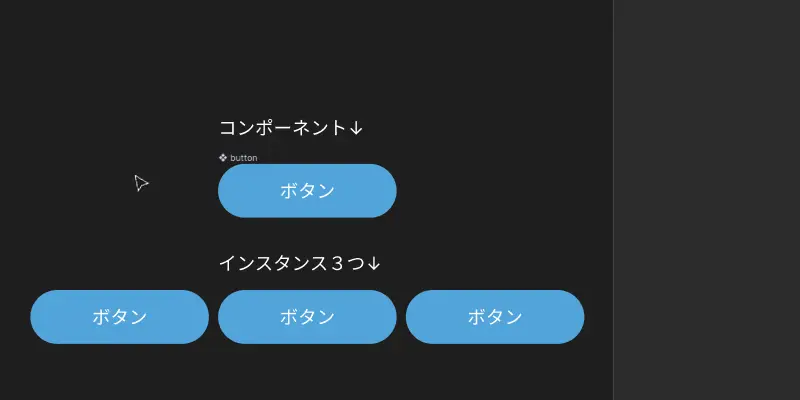
Let's change the color of the button that is the component. The three instance buttons below also changed color. Of course, changes to the button's text size, font type, corner radius, and so on are also reflected in the instances.
Editing an instance
When you make a change to an instance, the change applies only to that instance. After the change, it is no longer affected when you edit the component.
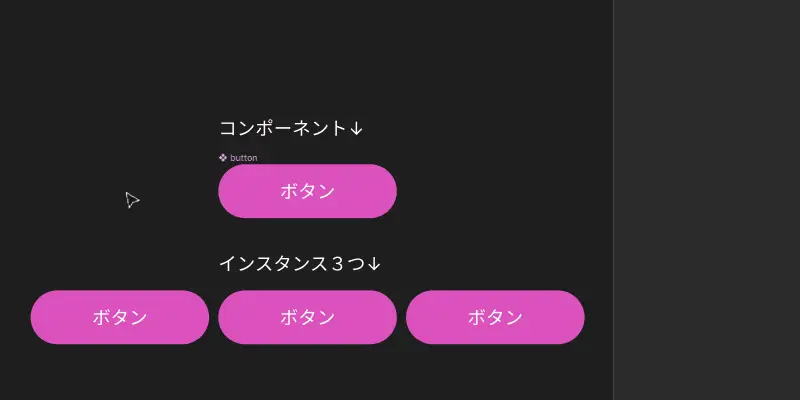
I changed the color of just one of the instance buttons. Only the changed button's color changed, and when I then edited the component button, the button whose color I had changed stayed the same while the colors of the other buttons changed.
How to reset changes made to an instance
If you want to reset the changes made to an instance, right-click the target object and select "Reset all changes."
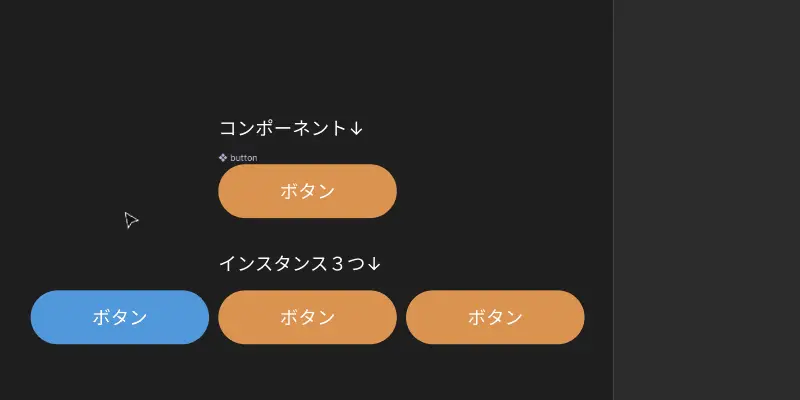
After resetting, the instance will once again reflect changes to the ❖ component.
If you delete a component
If you accidentally delete a component for some reason, right-click any of its instances and select "Main component > Restore main component."
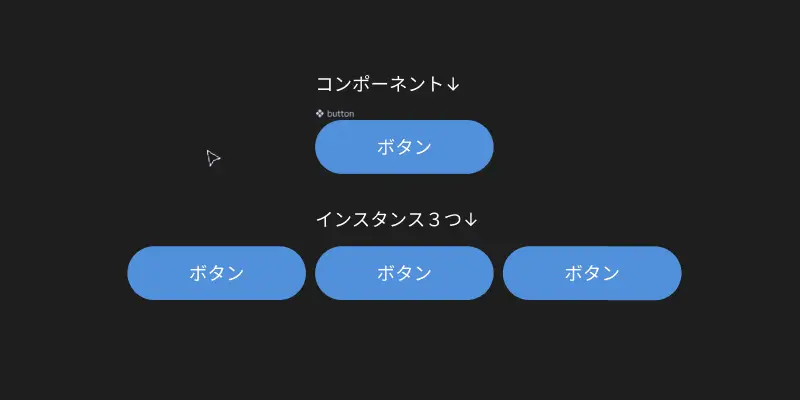
If you lose track of a component
If a component is buried in your design and you lose track of it, or it is located far away on the canvas, right-click any of its instances and select "Go to main component."
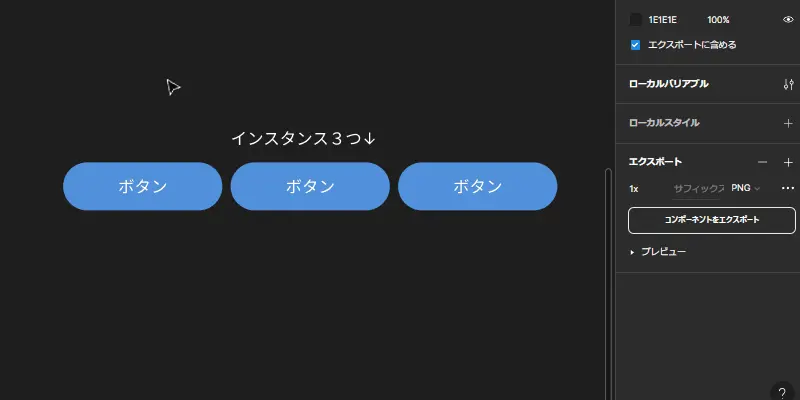
In closing
What did you think?
Using components makes changing and updating designs easier and can greatly reduce working time. You'll feel the benefits more in apps and websites that make heavy use of the same design parts and layouts, and the larger the project, the greater the benefits.
I hope this helps those who are new to designing in Figma or are struggling with how to use it.
WAN also provides design production in Figma and Illustrator. Please feel free to contact us with production requests.