- Home
- Works & Tech
- How to Use the Design Tool Adobe Illustrator, Part 1: Selection Tools
How to Use the Design Tool Adobe Illustrator, Part 1: Selection Tools
First, a quick look at the differences between Illustrator and Photoshop.

Familiar to anyone who works in design, Adobe Illustrator is graphic design software for creating layouts by combining text and images, and for creating illustrations by combining lines and shapes.
It is mainly used for a wide variety of design work, including logo design, printed materials such as business cards, flyers, and posters, and the design of web content and creation of assets.
One of its key features is that it draws in vector format. Artwork drawn in vector format does not lose quality when the data is enlarged or reduced.

Photoshop, another Adobe application, works in raster format. Image quality deteriorates when raster data is enlarged, but Photoshop's extensive retouching tools make it well suited to photo editing and high-resolution image processing.
The differences between vector and raster formats.
The major difference is whether the image deteriorates when it is enlarged or reduced.
To show you the difference, we created the image below in Illustrator.
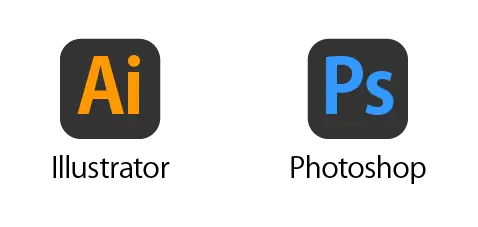
We will keep the Illustrator icon and text as vector data, convert the Photoshop icon and text to a raster image, and enlarge both at the same ratio.
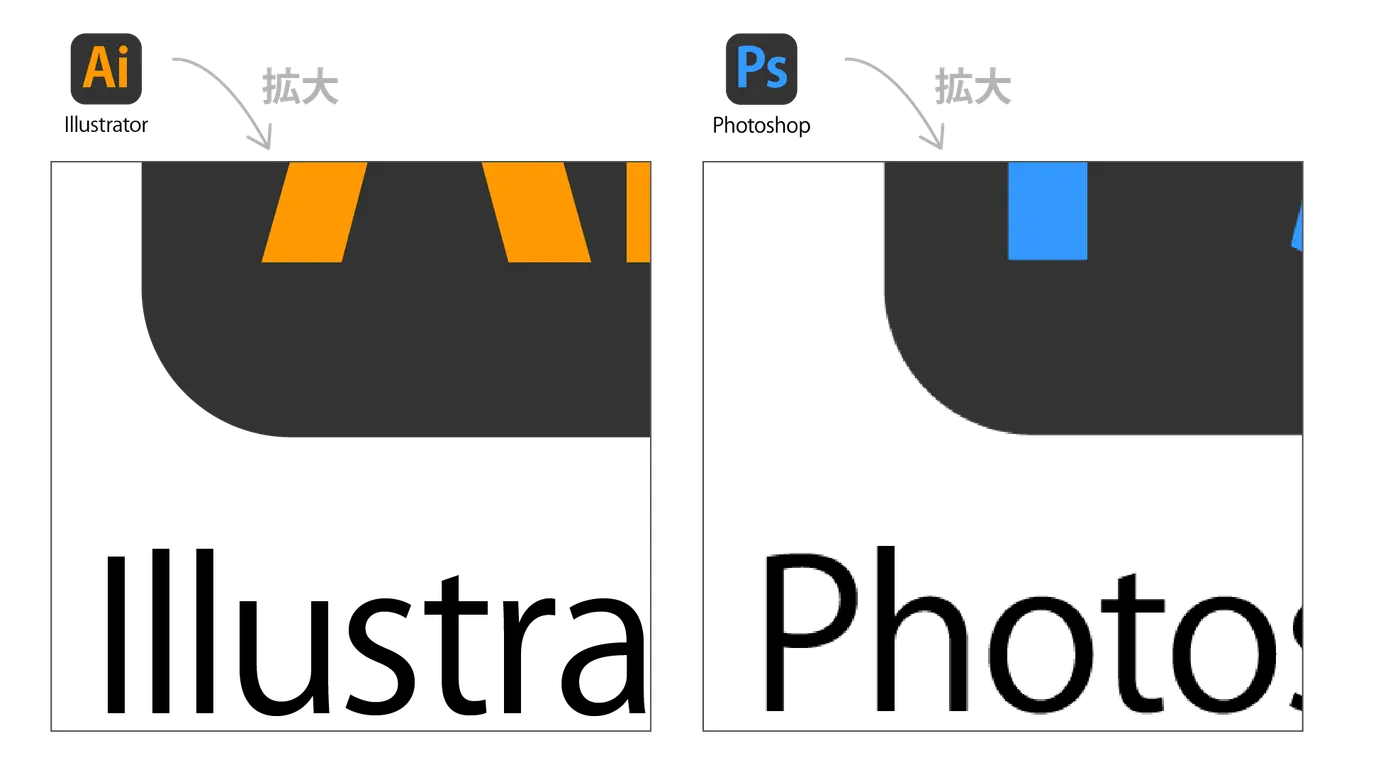
Enlarging further.
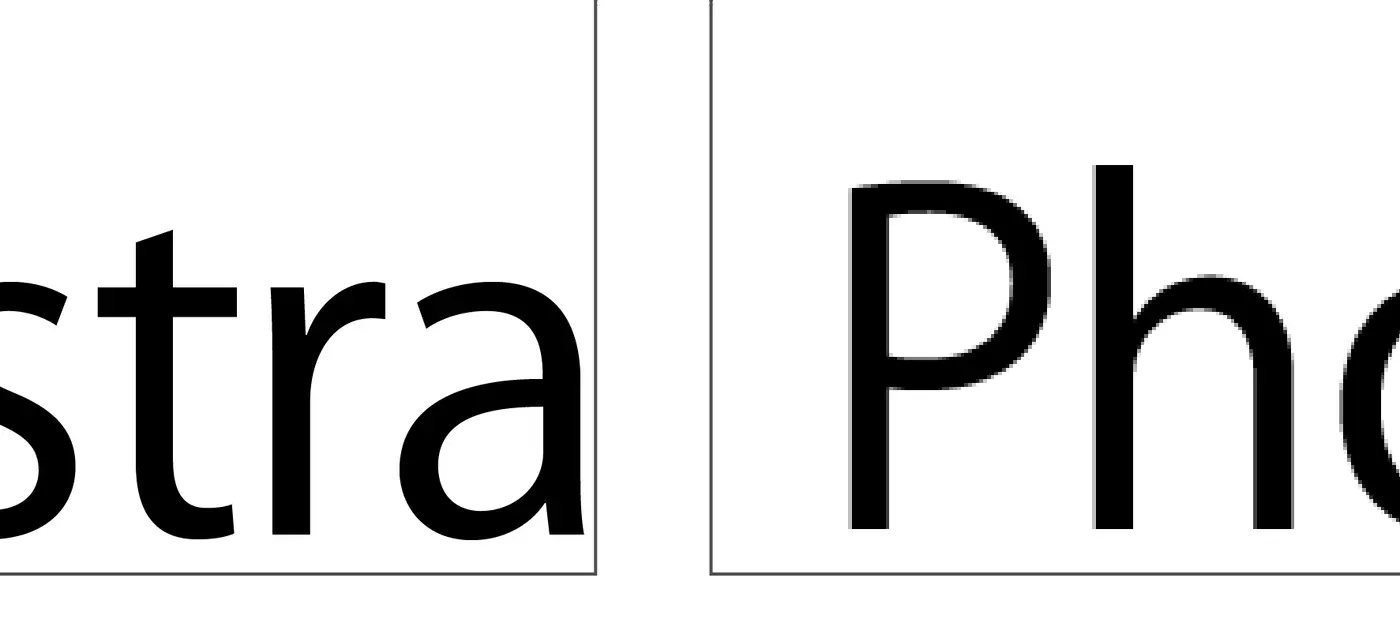
The edges of the text on the left remain sharp and clean, while the edges of the text on the right are blurred.
Because vector data does not deteriorate when enlarged, data created at 1 m × 60 cm in Illustrator can be printed at five times the size to make a large 5 m sign, like the ones you see on the walls of shopping malls.
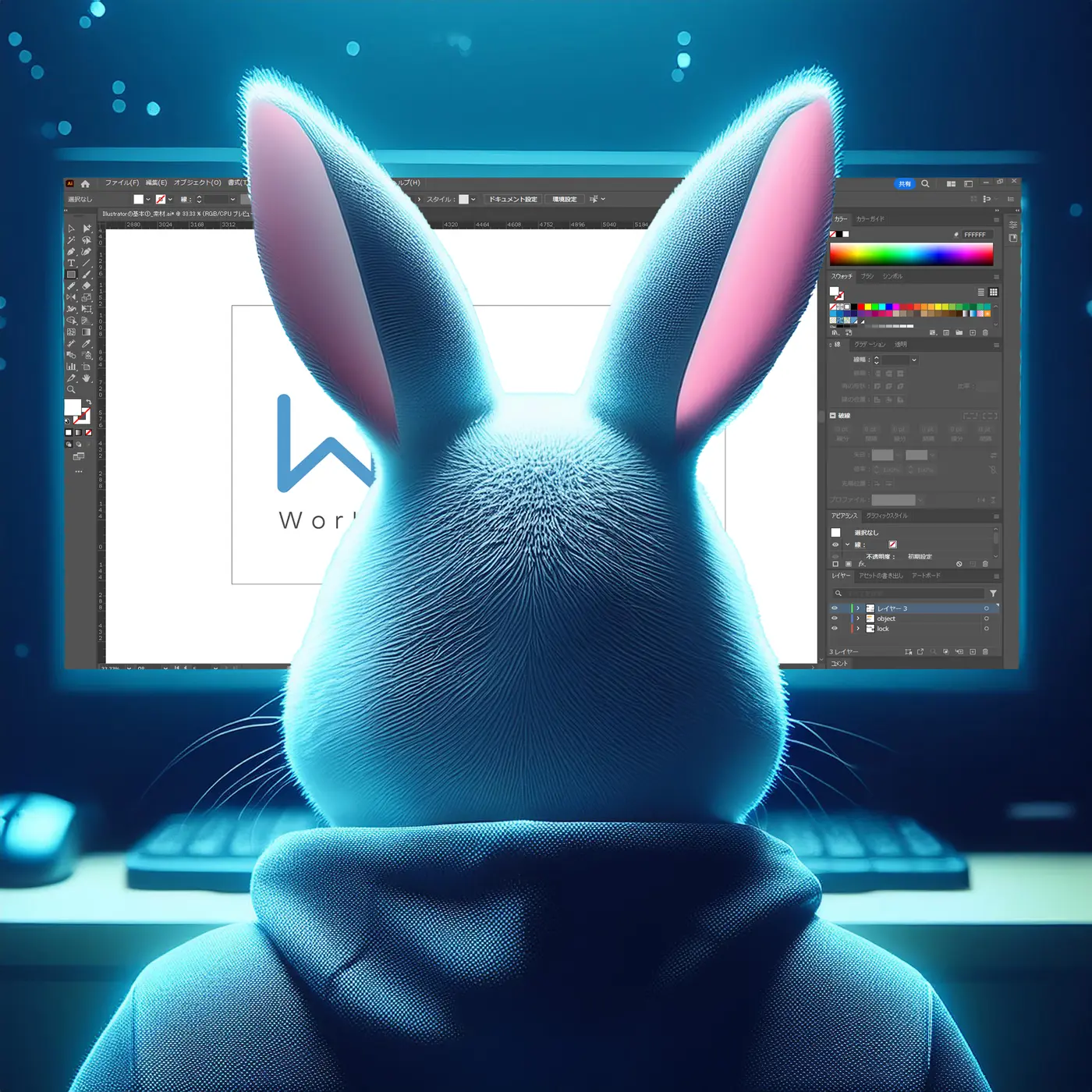

Left: A rabbit creating sign data on a computer. Right: The sign installed on the wall of a shopping mall.
Illustrator is extremely useful for all kinds of design work, but because it has so many features, it is a little complicated to operate. I have been using Illustrator for quite a while now, yet I still keep making new discoveries.
There are many times when I realize I have been using it without keeping up with updates, or only now notice features that you would call the most basic of basics. So this time, I have picked out the selection tools, which I had been switching between without much thought, and will introduce their functions and roles.
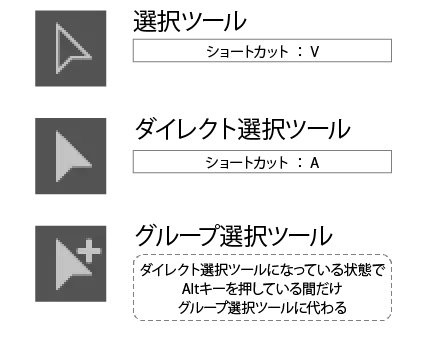
Types of selection tools.
There are the following three selection tools.
Types of selection tools
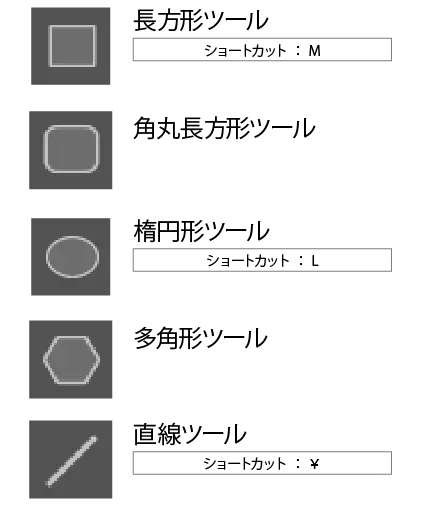
The drawing tools that create the "objects" you manipulate with the selection tools are as follows.
Types of drawing tools (partial)
We created a rectangular object with the "Rectangle Tool," one of the drawing tools.
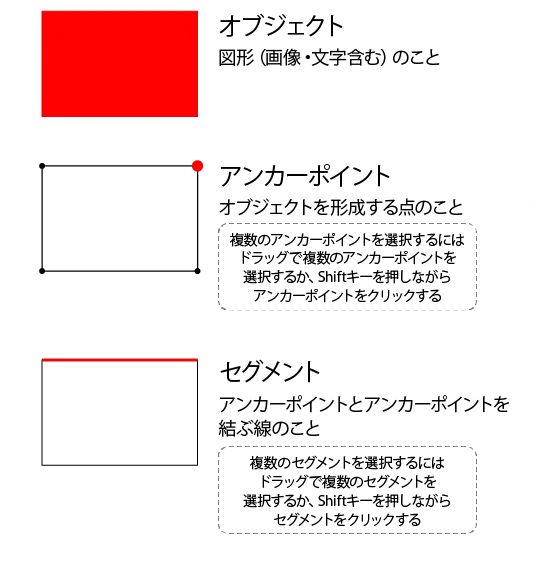
An object is made up of the following components.
Structure of an object
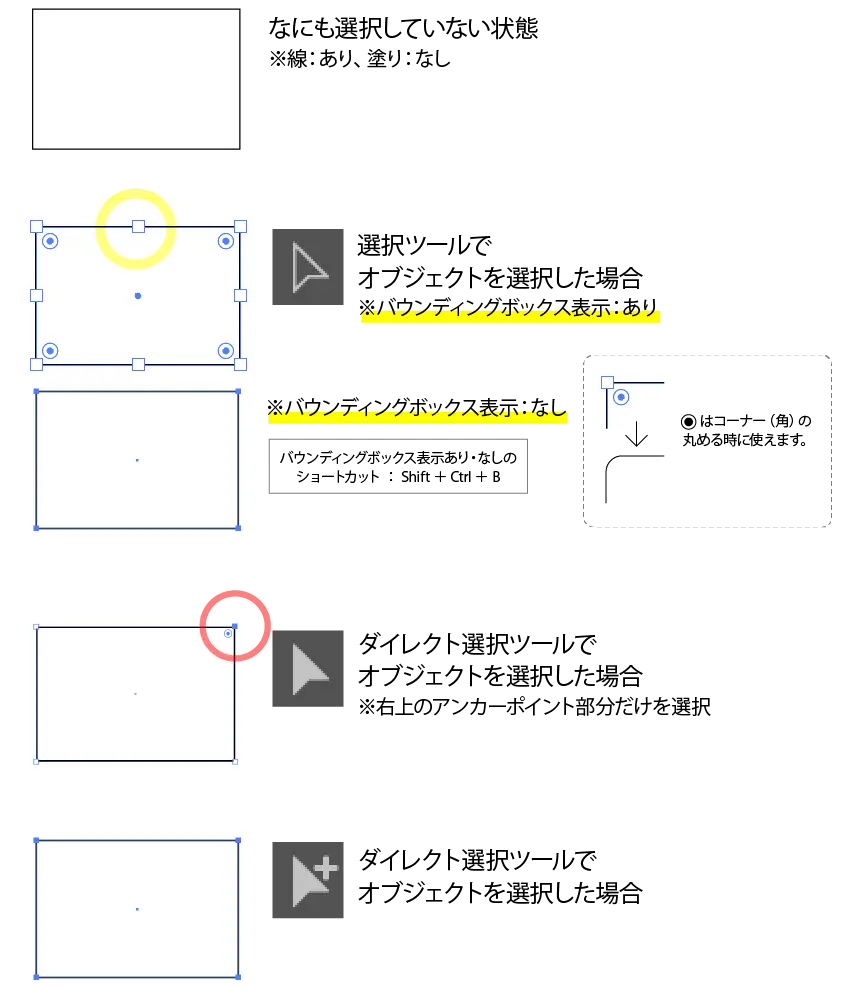
Here is how the object looks when selected with each selection tool.
Object states
When creating design data, you complete the design by placing objects, coloring them, transforming them, and so on.
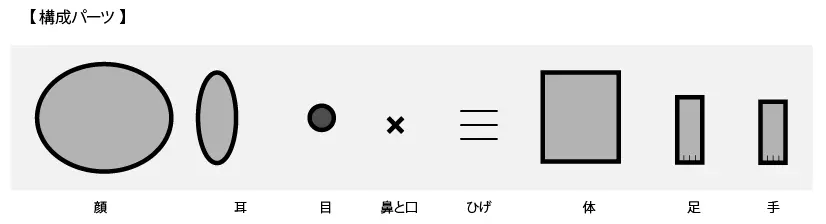
As a sample, let's create a character.
We will easily edit circle, rectangle, and line objects created with the drawing tools, using only the selection tools.
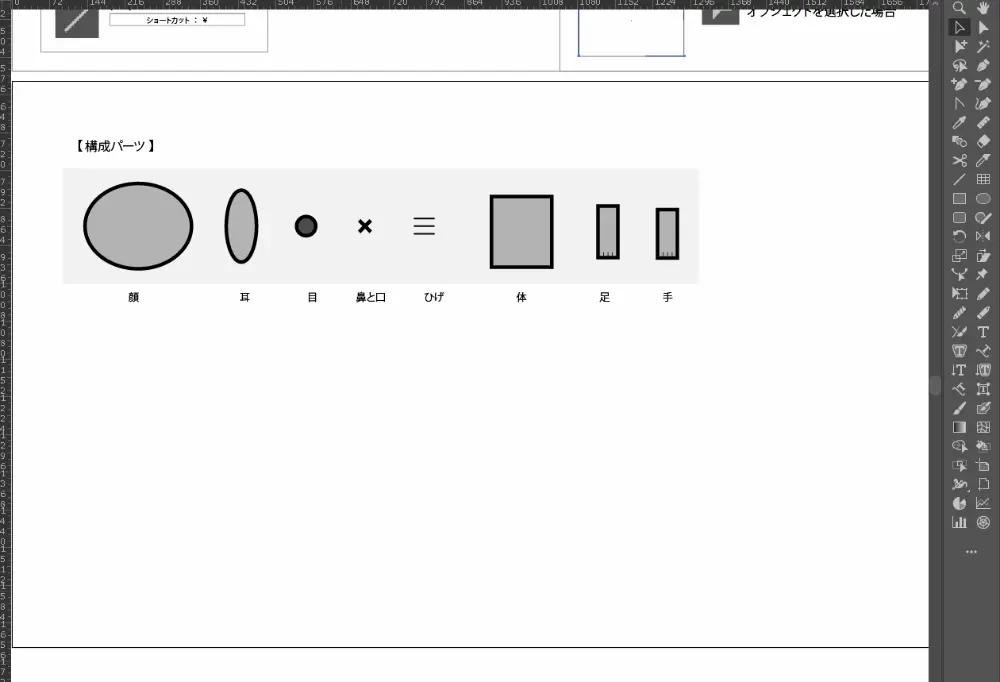
*If the GIF animation does not play, please click the image.
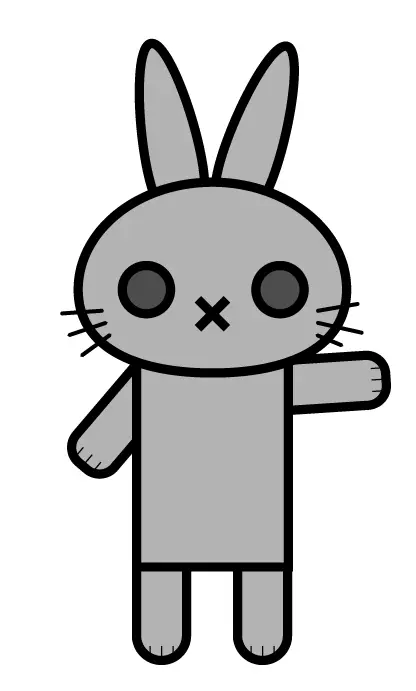
Done!
Final thoughts.
We handle a wide range of production work using Illustrator, including design production of all kinds, video asset production, and UI design. If you are wondering "Could they do something like this?", please feel free to contact us.